

Notification blocks
For adminsUpdated Nov 1, 2026
What each block adds to a notification: text, buttons, time off, celebrations, holidays and rewards.
A notification is built from blocks. Add them on the Blocks tab when you create a notification, in any order and as many as you need. Click X on a block to remove it.
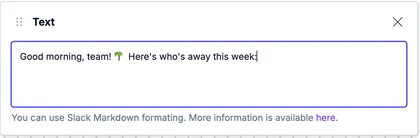
Text
Your own message. Use Slack formatting for bold, links and lists.
Button
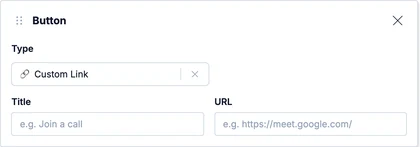
A button under the message. Choose its Type:
- Custom Link: opens any link, like a meeting or a form. Enter a Title and the URL.
- Kudos: opens the form to give kudos.
- Time Off: opens the form to request time off.
Time Offs
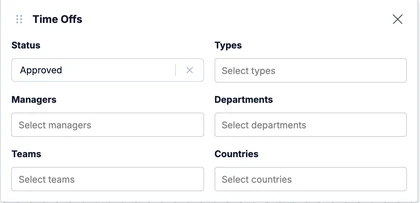
A list of people who are away or have time off coming up. Filter by Status (approved, pending or rejected), time off Types, Managers' teams, Departments, Teams and Countries.
Celebrations
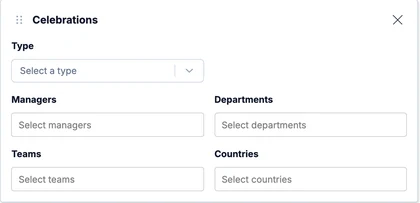
Upcoming birthdays and work anniversaries. Choose the Type, or leave it empty for both, and filter by Managers' teams, Departments, Teams and Countries.
Holidays
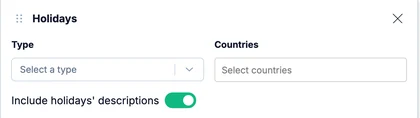
Upcoming public holidays. Choose the Type (official or unofficial) and the Countries. Turn on Include holidays' descriptions to add a line about each holiday.
Rewards
All your active rewards. People can request a reward right from the Slack message.
