

How to set up birthdays and anniversaries
For adminsUpdated Nov 1, 2026
Post birthday and work anniversary wishes in Slack automatically, with your own messages and GIFs.
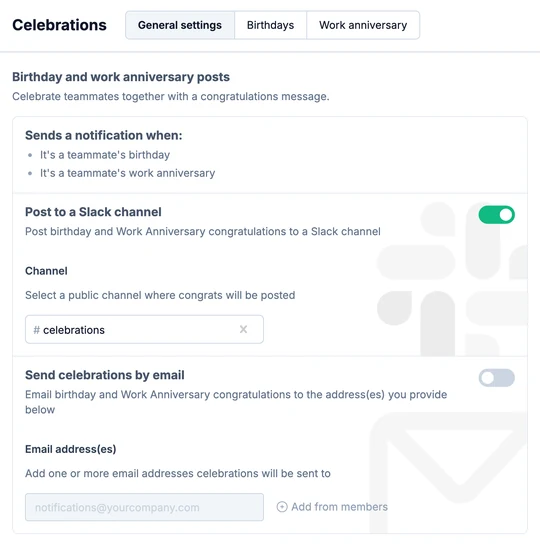
OrgaNice makes sure no birthday or work anniversary goes unnoticed: it posts a congratulations message on the day and can set a celebratory Slack status. Open Settings › Celebrations. There are three tabs: General settings, Birthdays and Work anniversary.
Celebrations must be turned on: check the switch at the top right of the page.
Choose where wishes are posted
On General settings, turn on Post to a Slack channel and pick a public channel, like #celebrations. You can also turn on Send celebrations by email and add email addresses, or click Add from members.
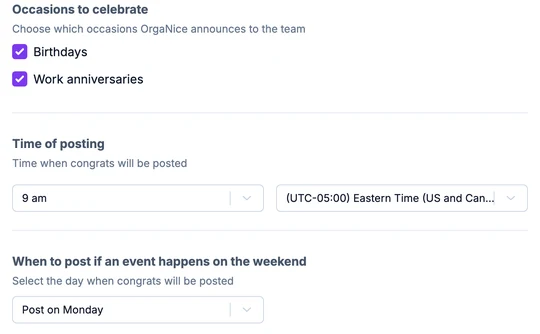
Under Occasions to celebrate, check Birthdays, Work anniversaries or both.
Set the Time of posting and time zone. Under When to post if an event happens on the weekend, choose Post on Friday, Post on the Weekend or Post on Monday.
OrgaNice takes birthdays and start dates from people's profiles. To collect them, make Birthday and Start date profile fields in the org chart settings.
Set up birthday wishes
On the Birthdays tab, turn on Change Slack status when it's member's birthday if you want OrgaNice to set a birthday status in Slack for the day.
Keep Post a birthday gif checked to add a random GIF to each message.
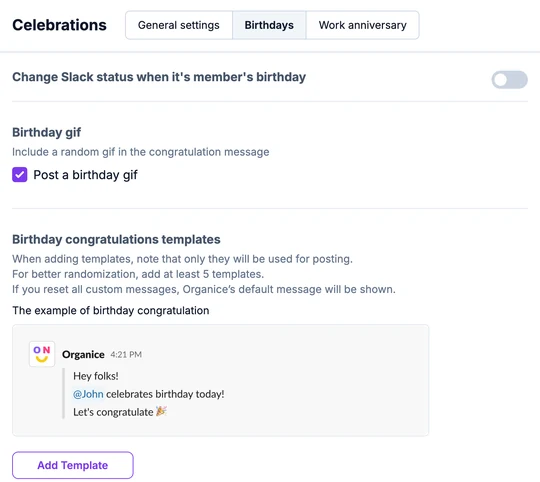
To write your own message, click Add Template. Use <RECIPIENT> where the person's name should go, check the preview, and click Save.
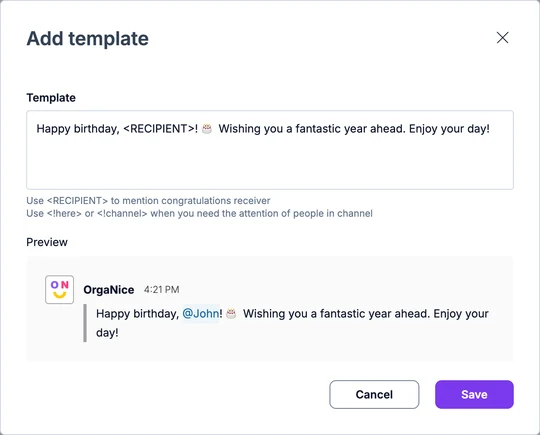
Once you add templates, OrgaNice picks one of them at random for each post instead of its default message. Add at least five so the messages don't repeat too often. If you delete all your templates, the default message comes back.
Set up work anniversary wishes
The Work anniversary tab works the same way: turn on Change Slack status when it's member's anniversary if you want it, keep or uncheck Post a work anniversary gif, and add your own templates.
Because of Slack's limits, OrgaNice can change everyone's status only after your Slack primary owner signs in to OrgaNice. Until then, the tab lists whose status it can't change, with a button to ask the primary owner to sign in.
What's next
- Introduce birthdays and work anniversaries to your team with a ready-made announcement.
- People add their birthday and start date when they update their profile. Anyone who'd rather not have their birthday announced can turn that off in their personal settings.