

How to create a notification
For adminsUpdated Nov 1, 2026
Schedule Slack posts about birthdays, holidays, time off and announcements, built from blocks or templates.
Notifications post OrgaNice updates to Slack on a schedule: who's away, upcoming birthdays and holidays, rewards, company announcements. You choose the content, the channel and the timing, so nobody has to send reminders by hand.
Open Settings › Notifications. There are two tabs: Notifications, with the ones you've created, and Templates.
Start from a template
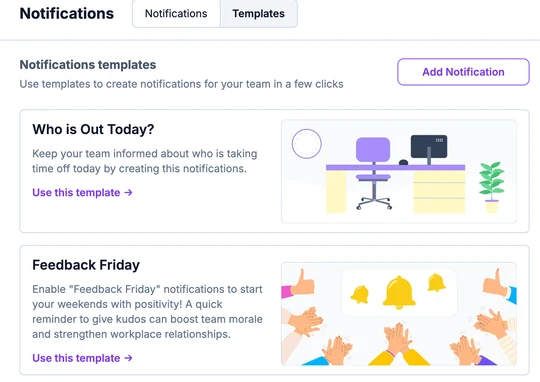
On the Templates tab, click Use this template on the one you want:
- Who is Out Today?: who's away today.
- Feedback Friday: a Friday reminder to give kudos.
- Upcoming Holidays: public holidays coming up.
- Upcoming Celebrations: birthdays and work anniversaries coming up.
- Upcoming Time Offs: planned vacations and sick days.
- Happy Start of the Week: a cheerful kick-off with a reminder to check the task board.
- Happy End of the Week: a wrap-up with a reminder to update the task board.
The editor opens with the blocks filled in, ready to change. Then continue from step 3 below.
Create a notification
Click Add Notification.
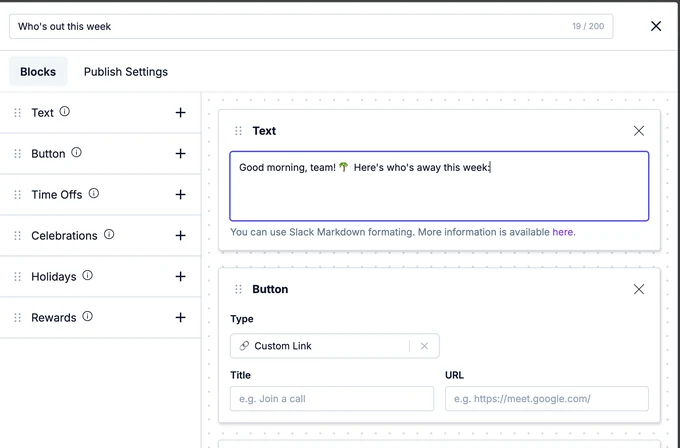
Enter a title at the top, like Who's out this week, so you can find it in the list.
On the Blocks tab, click + next to the blocks you need: Text, Button, Time Offs, Celebrations, Holidays or Rewards. Fill them in and drag them to change the order. See what each block does.
Click Next and set up publishing:
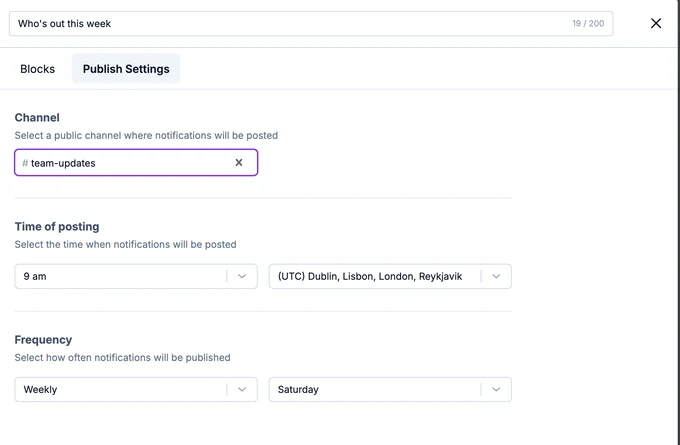
- Channel: the public channel to post in.
- Time of posting: the time and time zone.
- Frequency: Daily, Weekly, Monthly or Quarterly, and on which day.
Click Create.
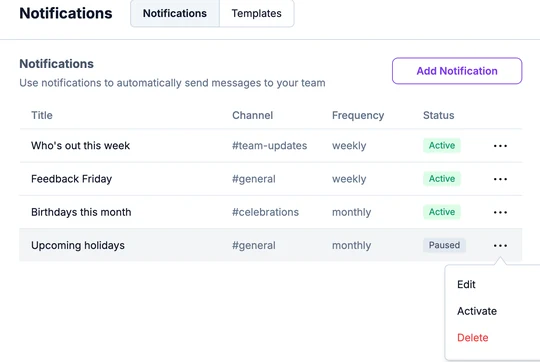
The notification is active and listed on the Notifications tab with its channel, frequency and status.
To check how a notification looks before it goes out, click Send a Preview: OrgaNice sends it to you in a direct message.
To post in a private channel, first invite the OrgaNice bot to that channel in Slack. The channel then shows in the Channel list.
Edit, pause or delete a notification
On the Notifications tab, click the three dots at the end of a notification's row:
- Edit to change its blocks or schedule.
- Pause to stop posting for a while, and Activate to start again.
- Delete to remove it.
What's next
See what each block shows, and how time off announcements differ from scheduled notifications in how time off notifications work.