

How to manage reward requests and coins
For adminsUpdated Nov 1, 2026
Approve or reject reward requests, correct people's coins and check the rewards leaderboard.
Once rewards are set up, people earn coins and request rewards. OrgaNice admins approve the requests and keep an eye on everyone's coins. In the OrgaNice web app, open Rewards and pick a page from the menu next to the title: Leaderboard, Rewards Requests or Manage Coins.
Approve or reject reward requests
When someone requests a reward, OrgaNice admins get it in Slack or by email, with Approve and Reject buttons. You can also handle requests on the Rewards Requests page, filtered by Pending, Approved or Rejected.
- Approve: the price is deducted from the person's coins, and they get a message. Then hand over the reward.
- Reject: add a reason if you like. The person gets a message, and their coins stay as they were.
OrgaNice rejects pending requests by itself when they can no longer be fulfilled:
- After you approve one request, the person's other pending requests that cost more than their remaining coins are rejected.
- When you deactivate or delete a reward, its pending requests are rejected.
- When someone loses access to OrgaNice, their pending requests are rejected.
People get a message with the reason each time.
Correct someone's coins
Manage Coins lists each person's place, Coins Earned, Coins Spent and Current Balance. The bar at the top shows your company's coins earned, spent and available.
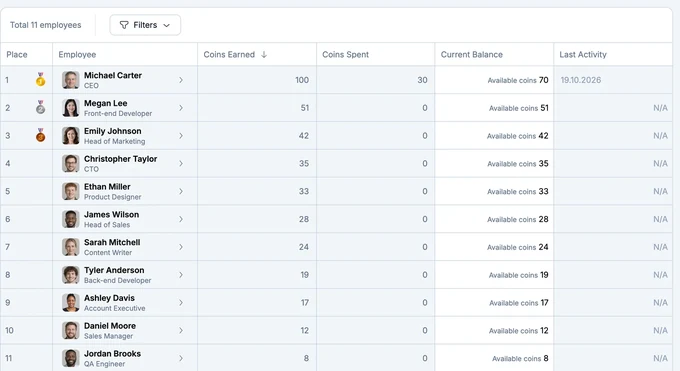
Click the person's Current Balance, type the new balance and press Enter.
Add a comment to explain the change, for example Bonus for the hackathon, and click Update. Don't update leaves the balance as it was.
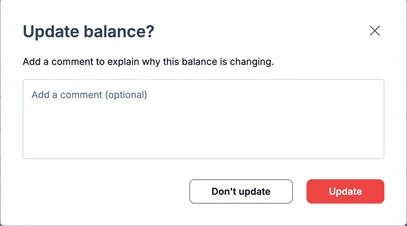
The change and your comment are saved in the person's Activity Log. To download the list, click Export to CSV.
Leaderboard
The Leaderboard shows your Top earners and Top spenders for the period you pick in Filters. It's a good way to celebrate the most active people, for example in a scheduled notification or your next team meeting.