How to run a survey
For adminsUpdated Nov 1, 2026
Send a survey to a channel or to chosen people, now or on a schedule.
Once you have a template, running it takes a minute. You can change the questions for this run without touching the template.
Only OrgaNice admins can run surveys.
Steps
In the OrgaNice web app, open Surveys and click Run Survey.
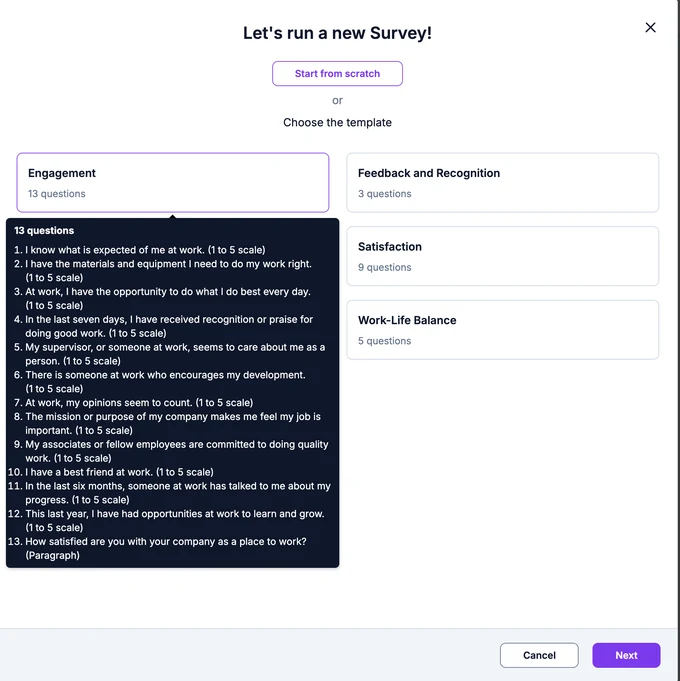
Choose a template, or click Start from scratch. Hover over a template to see its questions. Click Next.
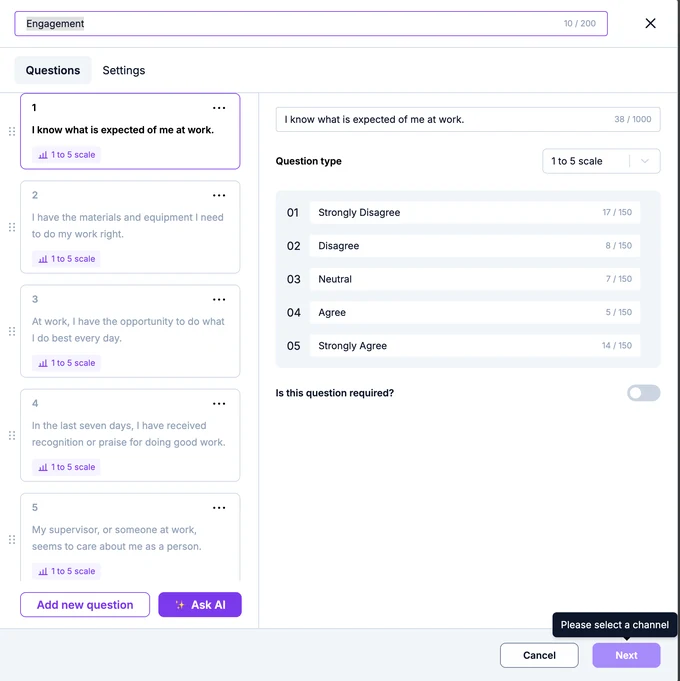
On the Questions tab, change the title, or add, edit and remove questions for this survey. Your template stays as it is.
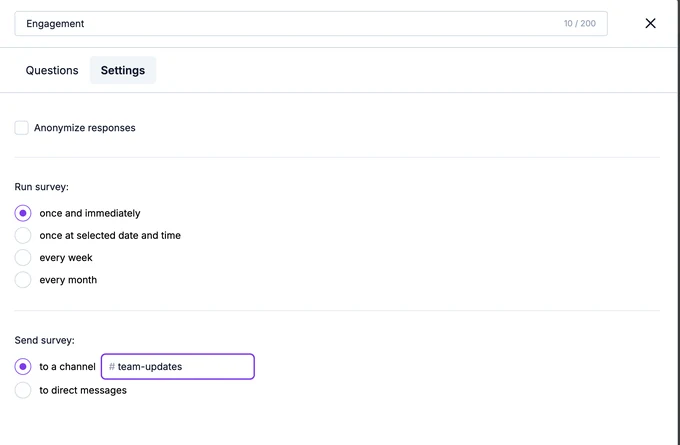
On the Settings tab, choose:
- Anonymize responses: check it so nobody sees who answered what.
- Run survey: once and immediately, once at selected date and time, every week or every month.
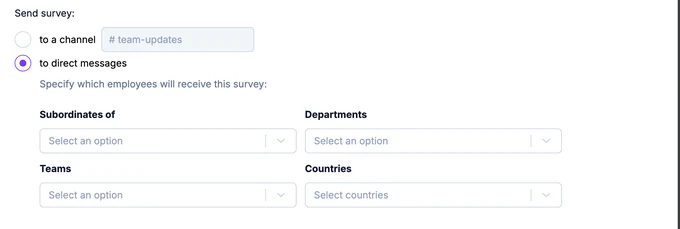
- Send survey: to a channel (pick a public channel) or to direct messages.
To send it to direct messages, choose who gets it: everyone, or only the people in some managers' teams, departments, teams or countries.
Click Run, then Confirm.
Result
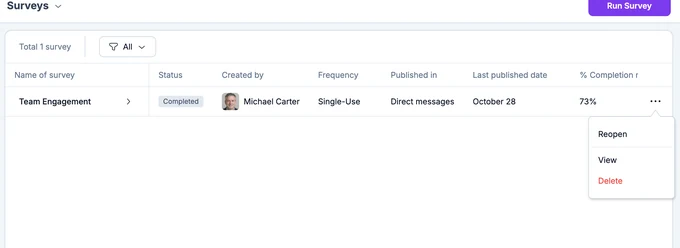
The survey appears on the Surveys page with its status and completion rate. OrgaNice posts it in the channel, or messages each person.
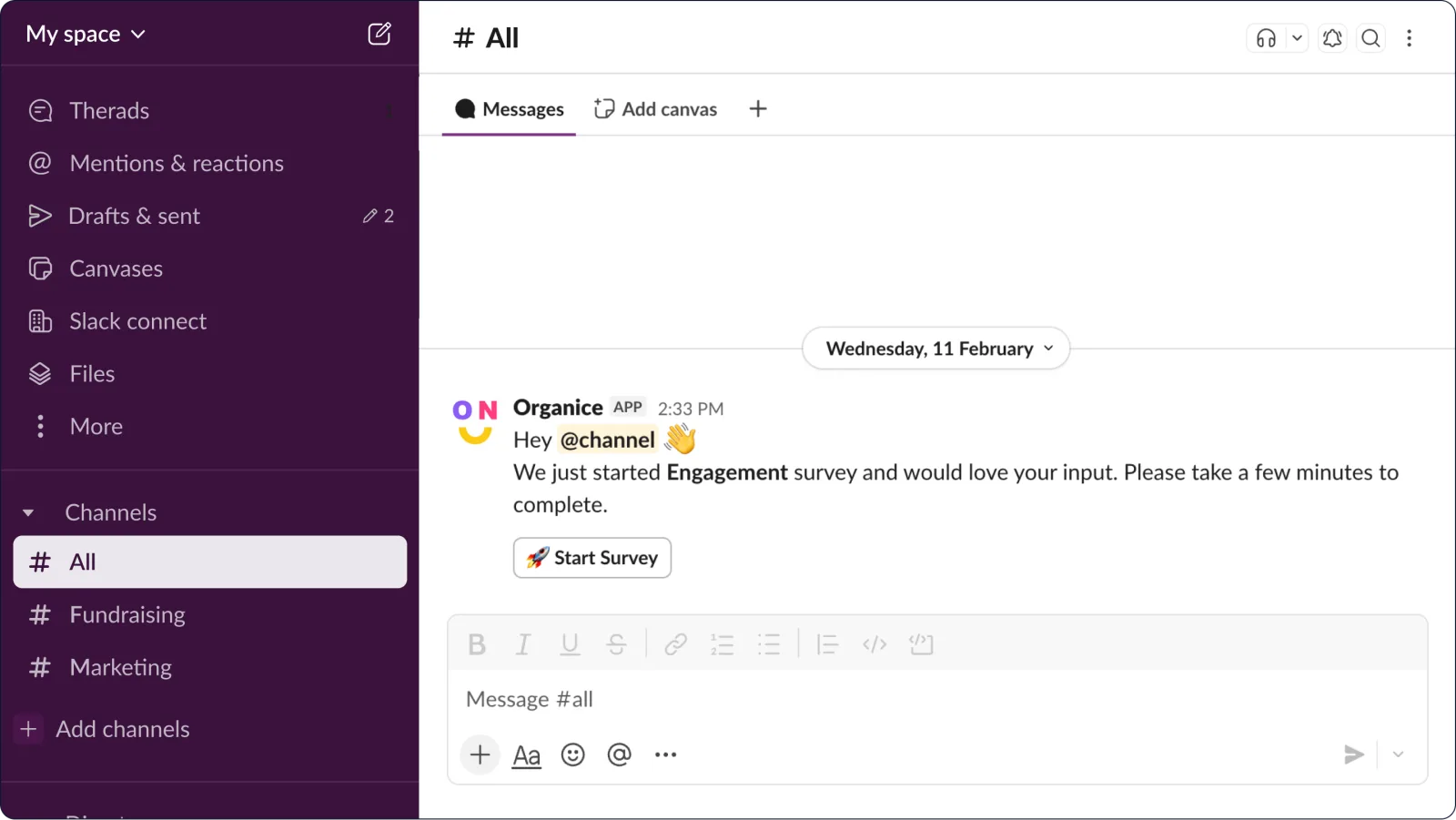
People answer in Slack. See how to take a survey.
Close, reopen or delete a survey
On the Surveys page, click the three dots at the end of the survey's row. Close stops collecting answers, Reopen starts again, View opens the results, and Delete removes the survey.