

How to see survey results
For adminsUpdated Nov 1, 2026
See a summary chart for each question or each person's answers, and export them to CSV.
Results update the moment someone answers. Open them from the web app or from Slack:
- In the web app: open Surveys and click the survey.
- In Slack: go to OrgaNice › Home tab › Surveys, click the three dots next to the survey and choose View responses.
The top of the page shows who the survey was sent to, who created it, the template it's based on and its status.
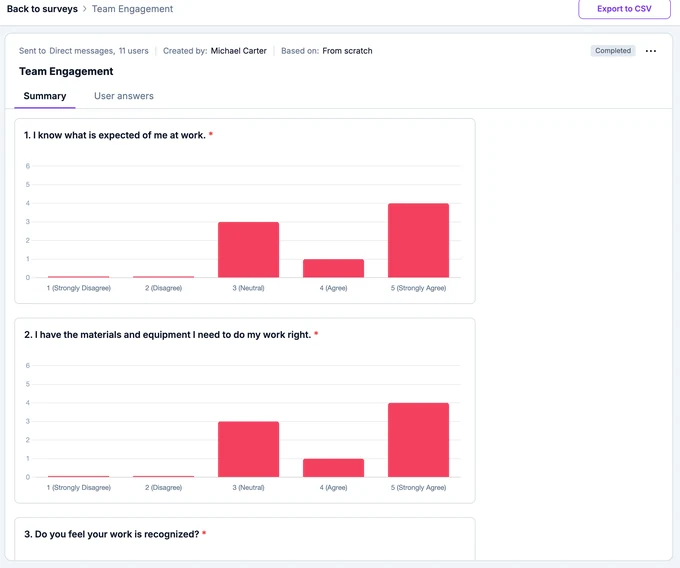
Summary
A chart for each question, to spot trends across everyone who answered.
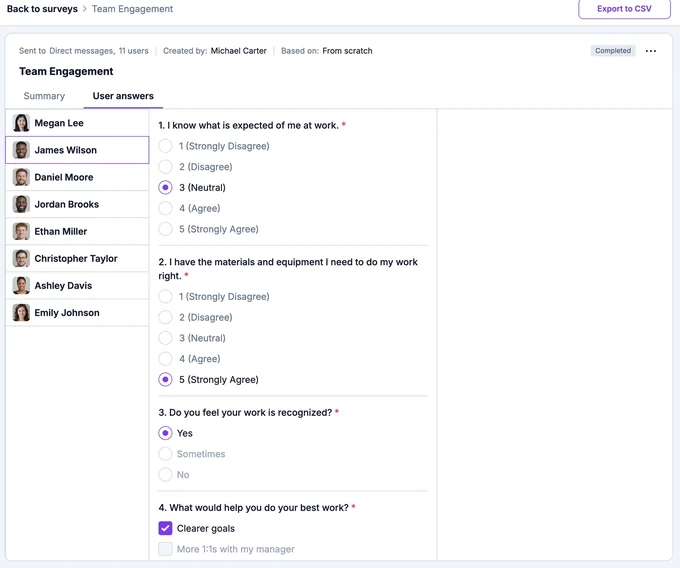
User answers
Pick a person on the left to see their answers, one by one. In anonymous surveys, people aren't named.
Export
To analyse the results elsewhere, click Export to CSV at the top right.