

How time off notifications work
For everyoneUpdated Oct 31, 2026
Who OrgaNice notifies about time off requests, approvals, changes and deletions, when, and where admins set it up.
OrgaNice keeps requesters, approvers and managers up to date, from the moment a request is sent until it's approved, rejected, changed or deleted.
Personal notifications arrive as a direct message from the OrgaNice bot in Slack, or by email. If both are available, each person chooses under Notify me by in their OrgaNice account settings.
When a request is sent
- Requester: a confirmation right after sending: the request went to the selected approvers and is waiting for approval.
- Each approver: a message with the request's details and buttons to approve or reject it.
- Group discussion: if a request has two or more approvers and the admin setting Send discussion notifications for time offs with multiple approvers is on, OrgaNice also creates a private Slack channel with the approvers to discuss it. If the setting is off, approvers can start one with the Discuss button. See how group approvals work.
- Reminder: if the request is still waiting 24 hours later and the time off starts at least 2 days away, OrgaNice reminds the approvers in the same conversation.
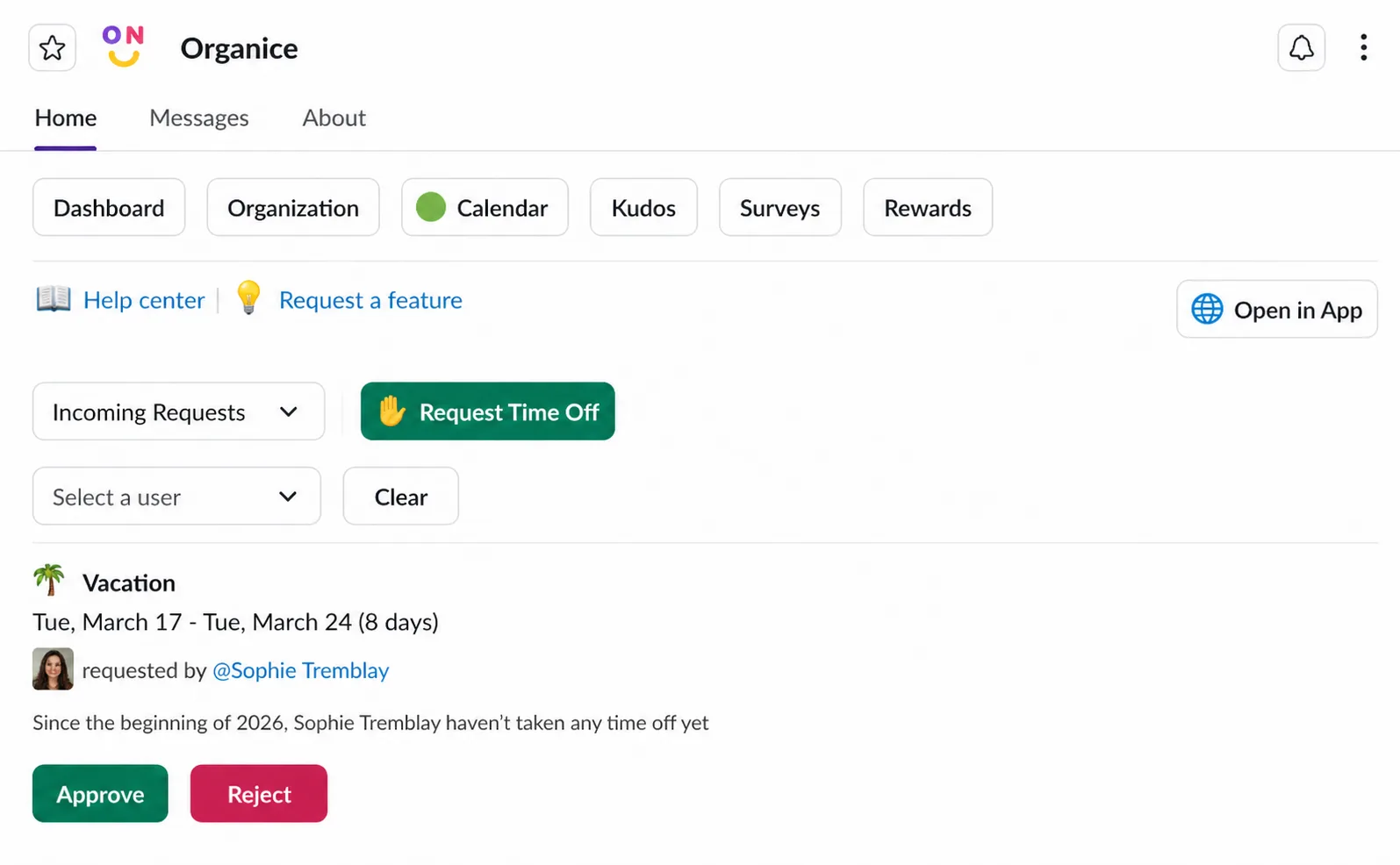
Managers can also see and handle incoming requests on the OrgaNice Home tab in Slack.
When a request is approved or rejected
- Requester: a message with the decision.
- Approvers: the request message updates to show the decision, and the discussion channel, if there was one, is archived.
- Org chart manager: if the requester's manager on the org chart wasn't one of the approvers, they get a message with the decision too.
- Team: approved time off is announced in the Who's away channel or email list, if your admin set one up.
Requests that don't need approval are approved automatically. The requester sees "Your request has been auto-approved", and the approvers, the org chart manager and the Who's away channel are notified as for an approved request.
When approved time off is changed or deleted
- Changed: the Who's away channel or email list gets the new dates. If someone other than the requester made the change, the requester gets a message about it.
- Deleted by the requester: the approvers get a message.
- Deleted by someone else, like an admin or an approver: the requester and the org chart manager get a message.
- Who's away: the cancellation is announced there too.
If a pending request is deleted, the approvers' request messages update to show that it was deleted.
Other notifications
- New accruals: if a time off policy has Notify about new accruals turned on, people get a message when new days are added to their balance.
Scheduled posts in a channel
The notifications above go out when something happens to a request. To post time off and holidays in a channel on a schedule, admins can create a custom notification. For example:
- Every morning, post who's away today in your team channel.
- Every Monday, post the week's upcoming holidays for one country, like the United States, or for the whole company.
Where admins set this up
- Who's away: in Settings › Time Offs › General settings, choose a public Slack channel and/or email addresses for announcements about approved, changed and canceled time off.
- Discussion channels: the Send discussion notifications for time offs with multiple approvers setting is on the same page.
- Accrual messages: Notify about new accruals is in each time off policy.