

How to change your profile in OrgaNice
For everyoneUpdated Oct 30, 2026
Update your job title, manager, team, birthday and more from the OrgaNice Home tab in Slack.
An up-to-date profile helps colleagues find you and keeps the org chart right.
Steps
In Slack, open OrgaNice › Home tab › Dashboard and, under My Profile, click Update Profile.
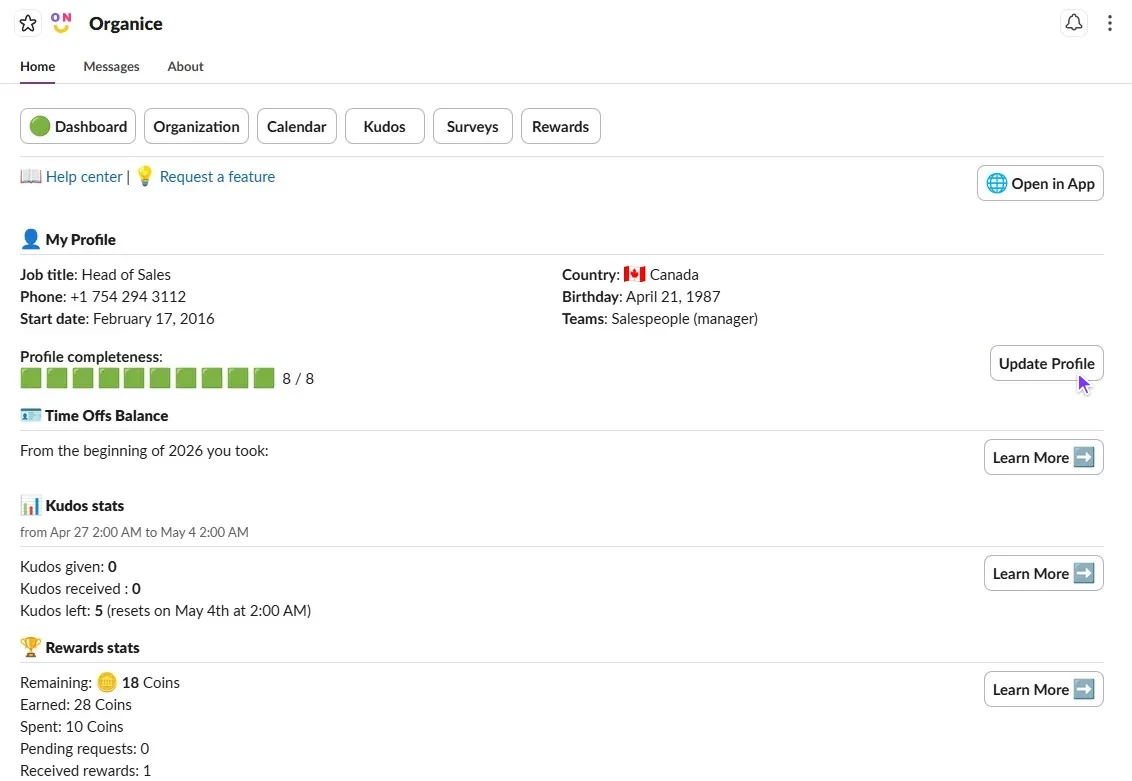
Fill in your details. Your admin chooses which fields you see and which are required; the rest are marked (optional). The form usually includes:
- Job title: your official role.
- Phone: a number where people can reach you.
- Manager: your direct manager. If you're at the top of the org chart (for example, the CEO), check Doesn't have a manager instead.
- Department and Teams: where you work, including any cross-functional teams.
- Country: where you're based.
- Birthday: so your team can celebrate. Once it's filled in, you can check Opt-out from birthday announcement if you'd rather not have it announced.
- Start date: the day you joined the company.
- Any extra fields your admin added, like LinkedIn.
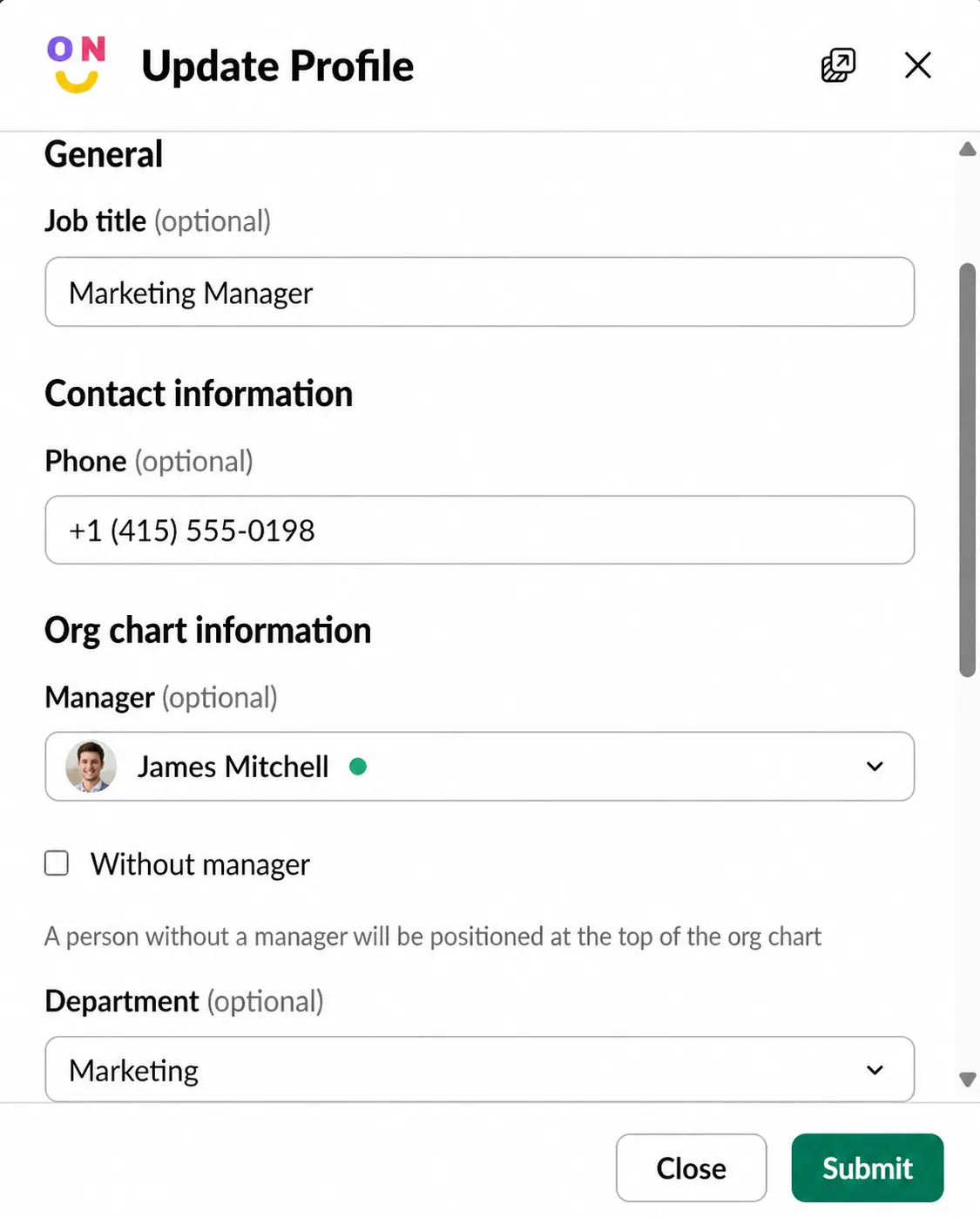
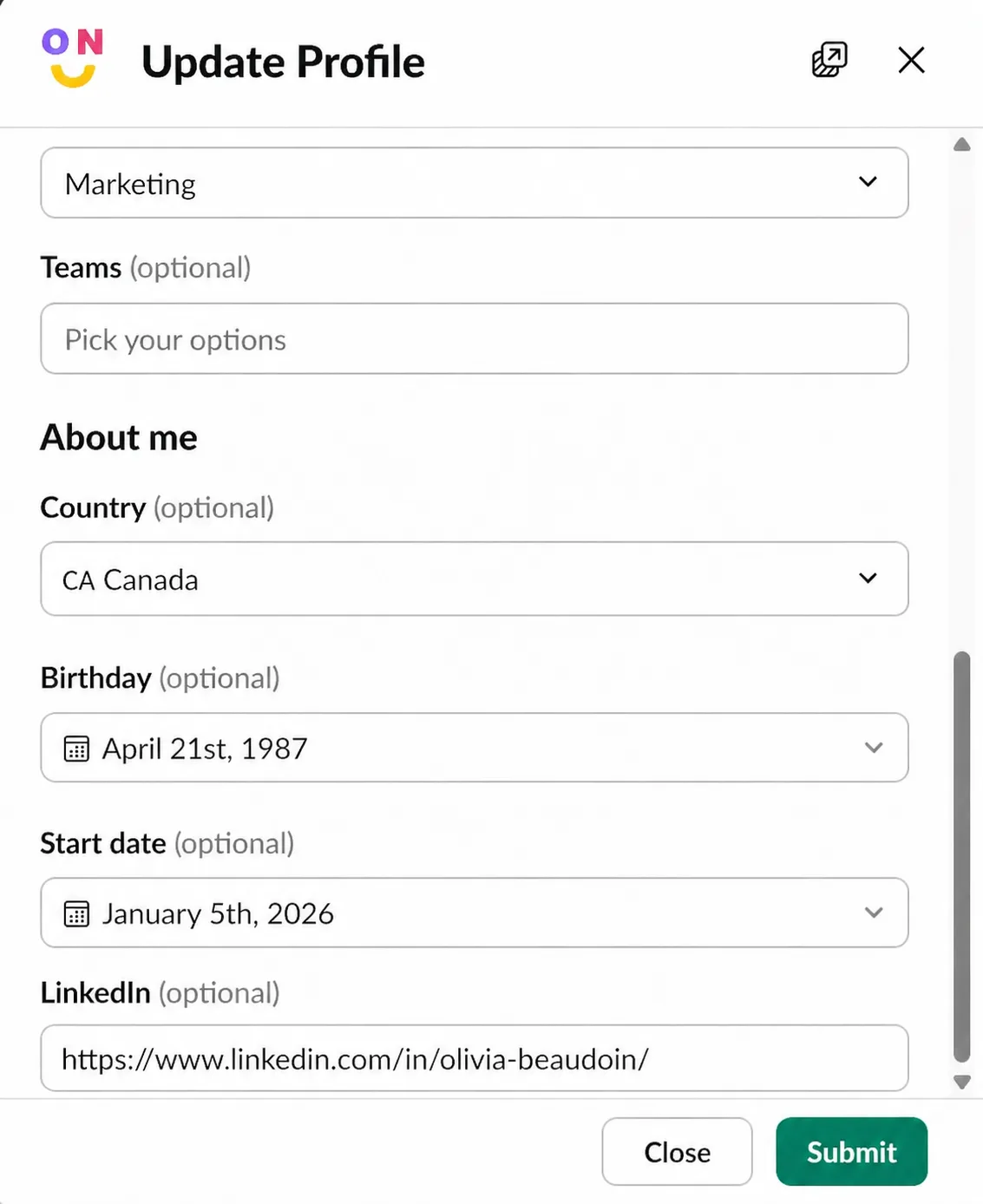
Click Submit.
New hire or changing roles? Above the manager field, click Select available position and pick your role from the org chart. OrgaNice fills in your manager and department for you.
Your profile photo comes from Slack. To change it, see how to update your profile photo in Slack.
Result
Your profile and your place on the org chart are updated.