

How to sync Slack profile fields with OrgaNice
For adminsUpdated Nov 1, 2026
Switch Slack profile fields to the API data source, add new ones or turn on Manager, then connect them in OrgaNice.
OrgaNice always reads Slack profile fields to fill in its own profiles. To also write changes back to Slack, a Slack field must:
- use the API data source,
- not be hidden, and
- be matched to an OrgaNice field on the Sync w/ Slack tab.
First prepare the field in Slack: switch an existing field to API, create a new one or turn on Slack's Manager field. Then connect it in OrgaNice.
Only Slack Workspace Owners and Admins can manage profile fields. If you're a member, ask one of them to do this.
Open the profile settings in Slack
In Slack, click Admin in the sidebar, choose Workspace settings, then go to People › Profiles. On Enterprise plans, click your organization name › Tools & settings › Organization settings, then People › Profiles.
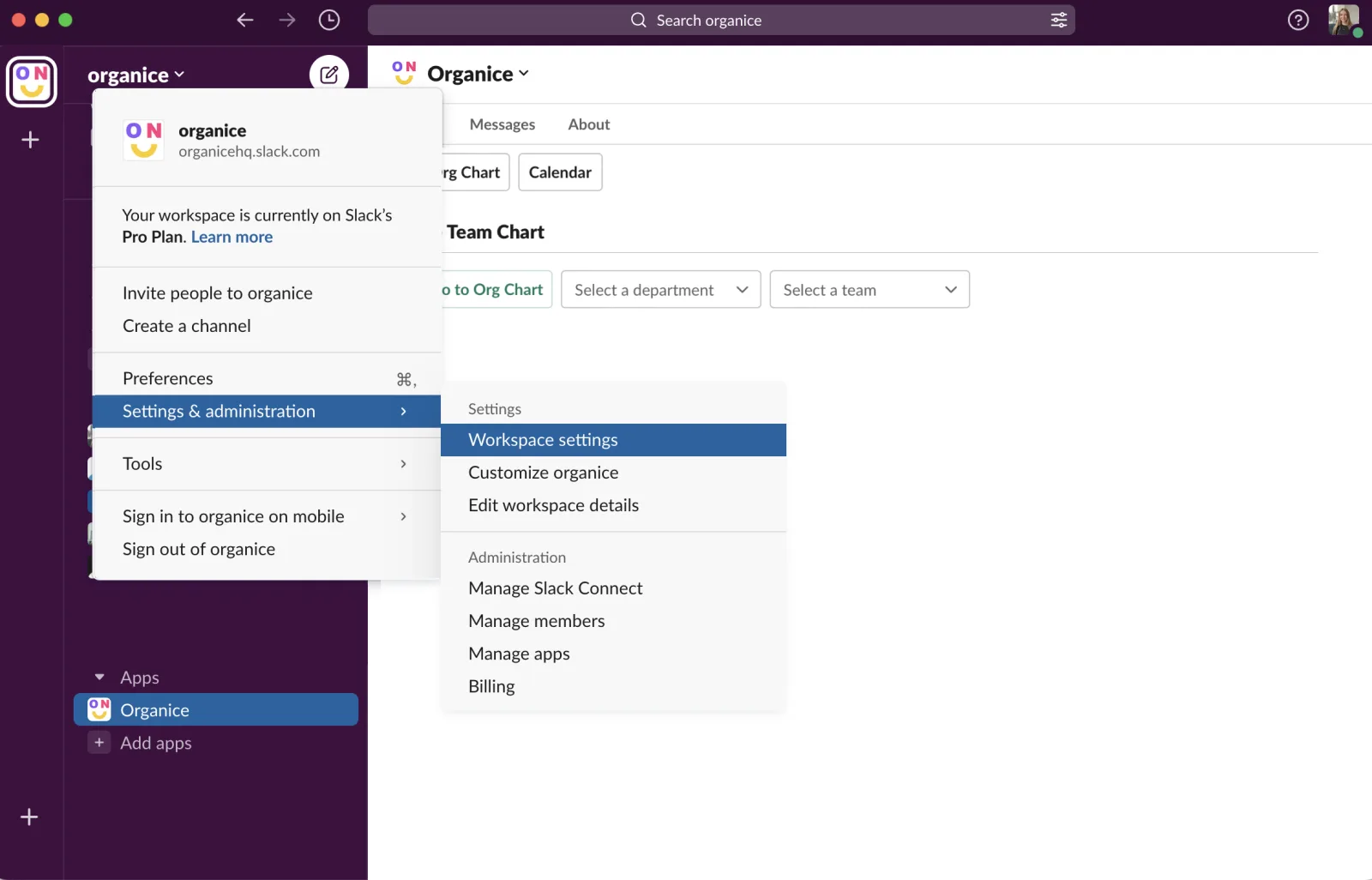
Use an existing Slack field
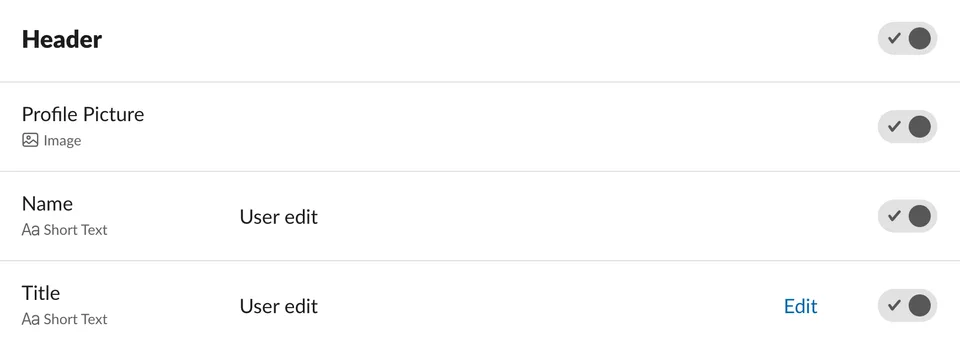
Find the field you want to sync and click Edit. If the field or its section is hidden, turn it on: OrgaNice doesn't sync hidden fields.
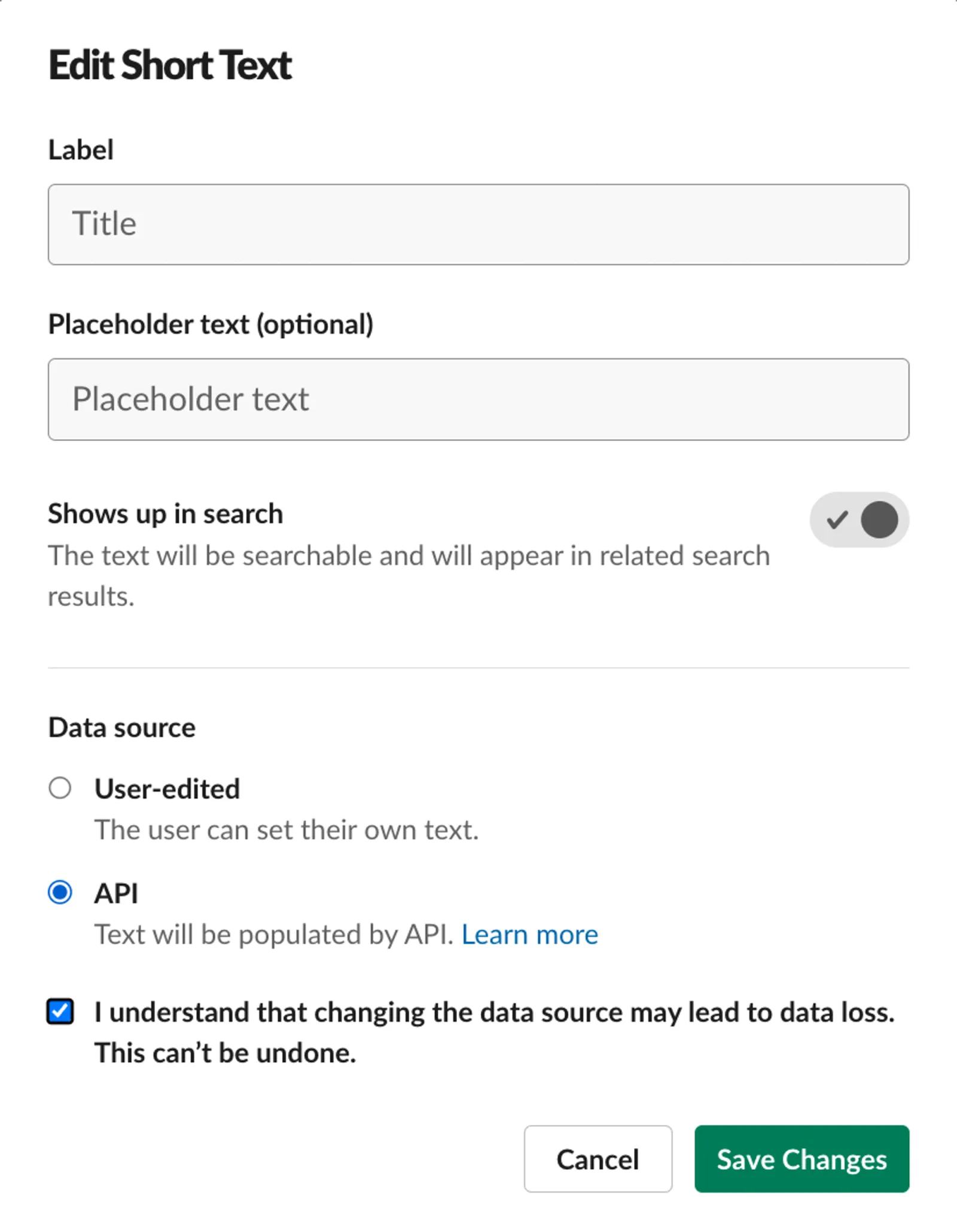
Under Data source, select API and check I understand that changing the data source may lead to data loss. This can't be undone. Despite the warning, the values people already entered stay in place.
Click Publish Changes. Slack applies nothing until you publish.
Fields synced from an identity provider like Okta or Azure AD (SCIM) can't be written by OrgaNice, even with the API data source. Update those in your identity provider.
Create a new Slack field
At the bottom of a section, click Add People for a field that holds a person (like a mentor or project lead), or Add Data Element for other data.

Set up the field:
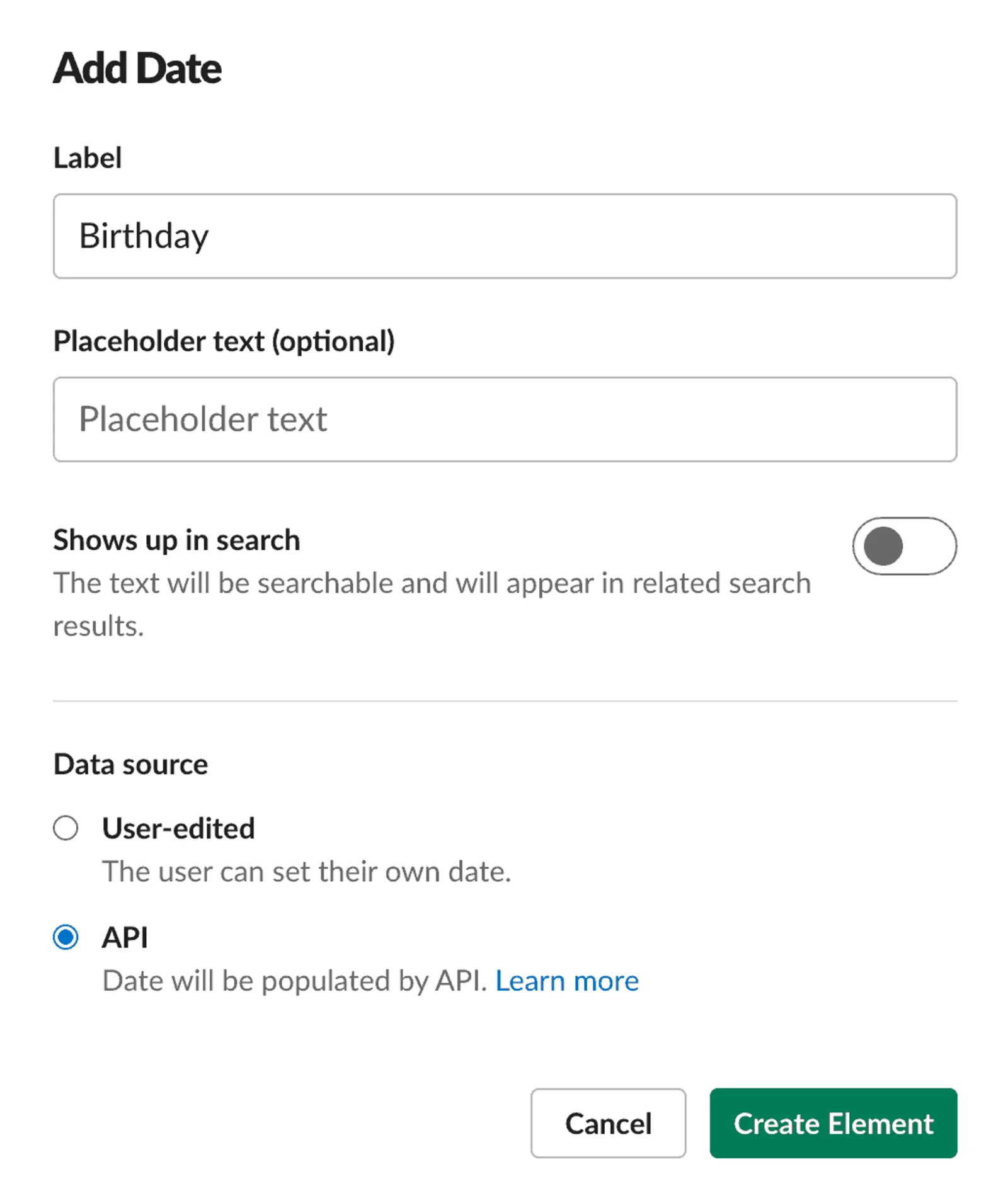
- People: type a Label, select API and click Create Element.
- Data element: pick the type (Short Text, Link Text or Date), type a Label and select API. Check I understand that changing the data source may lead to data loss. This can't be undone and click Create Element.
Make sure the field and its section aren't hidden.
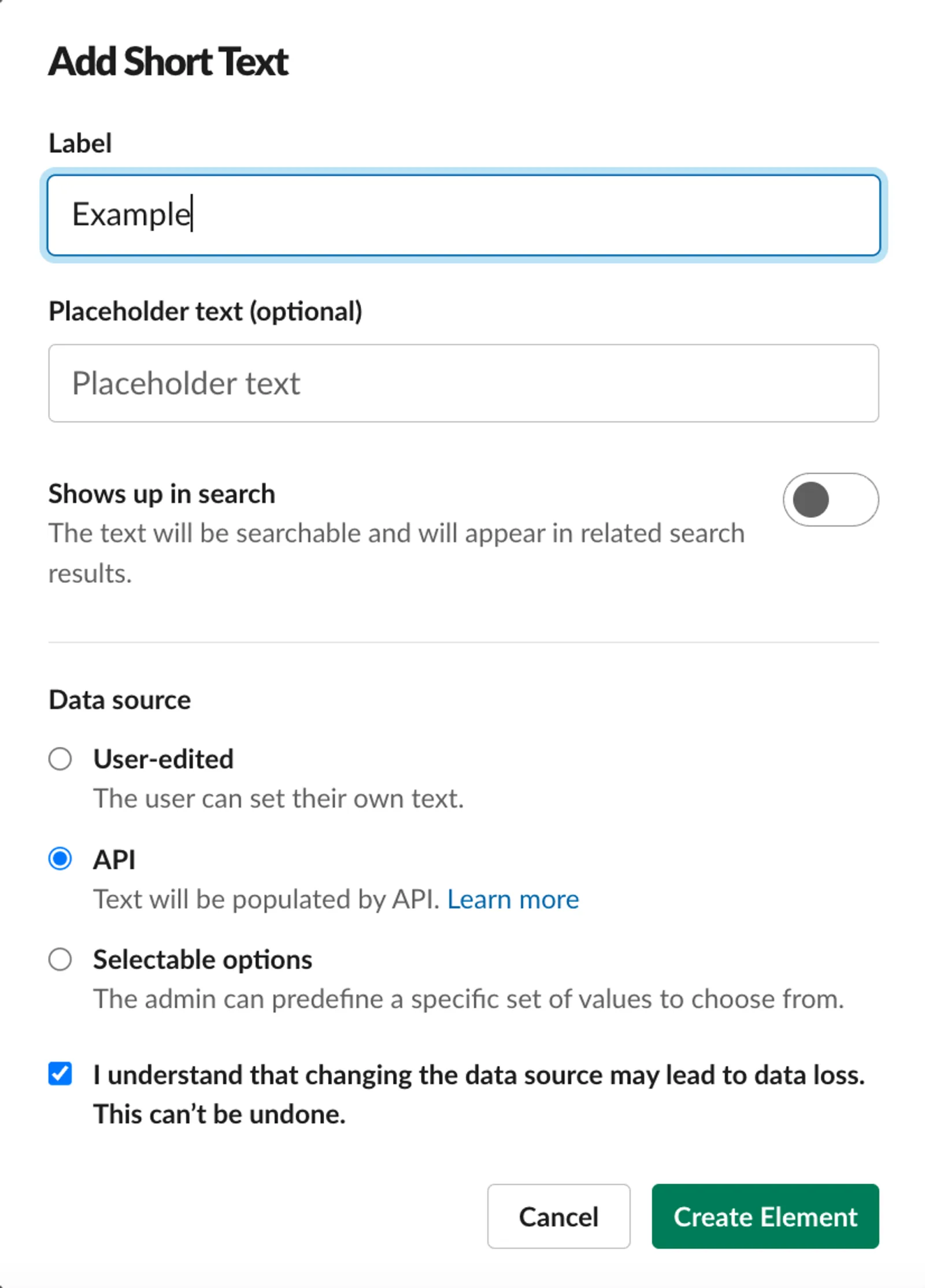
For OrgaNice's Birthday or Start date, create a Date field, for example labelled Birthday.
Click Publish Changes.
Turn on the Manager field in Slack
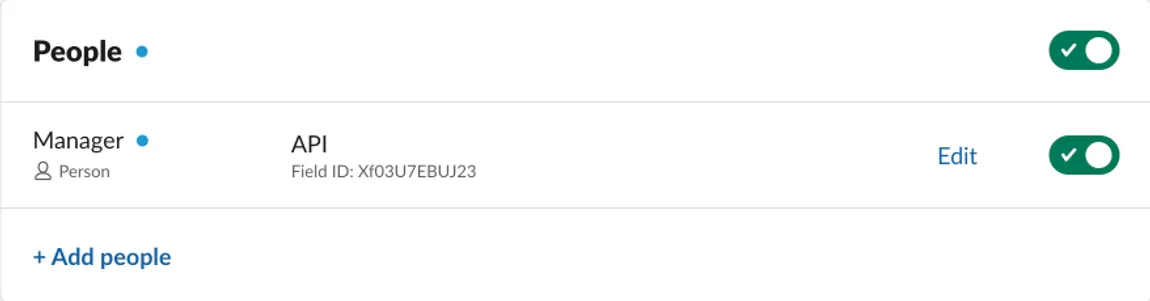
Slack has a built-in Manager field in the People section of member profiles, but it's turned off in many workspaces. Turn it on to sync reporting lines: OrgaNice reads managers from it and, with data push on, updates it when you change the org chart.
In the People section, turn on Manager. For OrgaNice to also update it, set its data source to API, as for an existing field.
Click Publish Changes.
When OrgaNice first syncs with Slack, it matches Slack's built-in fields automatically, including Manager. If you turn the field on later, match it yourself in the next step.
Connect the field in OrgaNice
Make sure OrgaNice has a field of the same type to match it to:
- A Slack People field matches an OrgaNice User field.
- Short Text matches Text.
- Link Text matches Link.
- Date matches Date, like Birthday and Start date.
Use a built-in field like Phone, or add your own.
In OrgaNice, open Settings › Org Chart › Sync w/ Slack and turn on Enable data push to Slack. If the toggle is already on, turn it off and on again so OrgaNice loads your changes in Slack. This can take up to a minute.
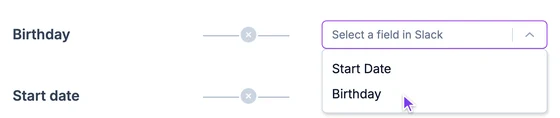
Next to the OrgaNice field, choose the Slack field under Slack. Only Slack fields of the matching type are listed.
Result
The field shows the green two-way arrows on the Sync w/ Slack tab. When it changes in OrgaNice, for example when someone answers the bot or an admin edits a profile, OrgaNice updates it in Slack too.
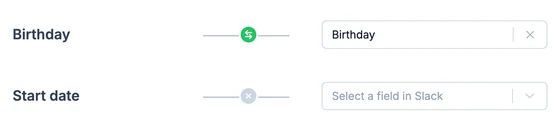
A red icon next to a field means OrgaNice can't write to it: its data source in Slack isn't API, or it's hidden. Fix it in Slack, publish, and turn Enable data push to Slack off and on again.
To update admins' and owners' profiles too, OrgaNice needs your Slack primary owner to sign in. See primary owner confirmation.