

How to set up an org chart
For adminsUpdated Nov 1, 2026
Choose the profile fields on your org chart, sync them with Slack and automate data collection.
You decide what your org chart shows and how OrgaNice collects it. In Settings, the org chart settings have five tabs: Profile Fields, Sync w/ Slack, Data Collection, Chart Members and Hiring.
Profile fields
Choose which fields are Required and which are Optional. Required fields must be filled in to complete a profile. The built-in fields are Manager, Job title, Department, Teams, Photo, Country, Phone, Birthday and Start date. Next to a field, you see how many members are missing it.
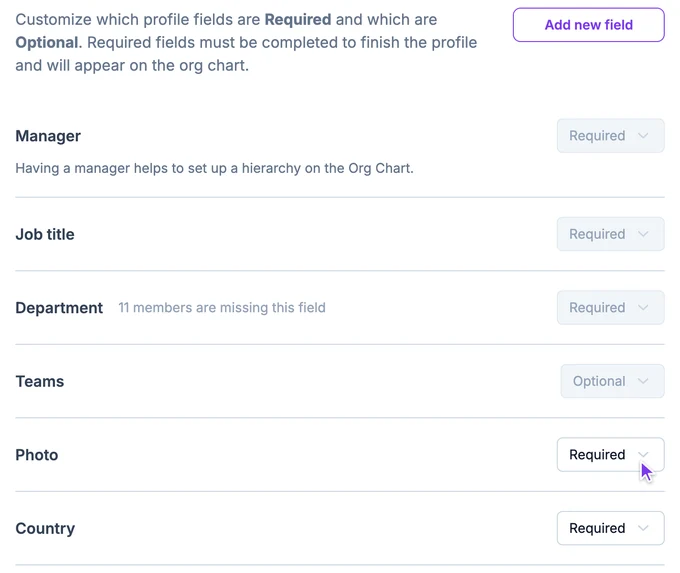
Birthday also has Hide birthday year: people see only the date, not the year or age. People still see their own full birth date, and admins see everyone's.
Add your own field
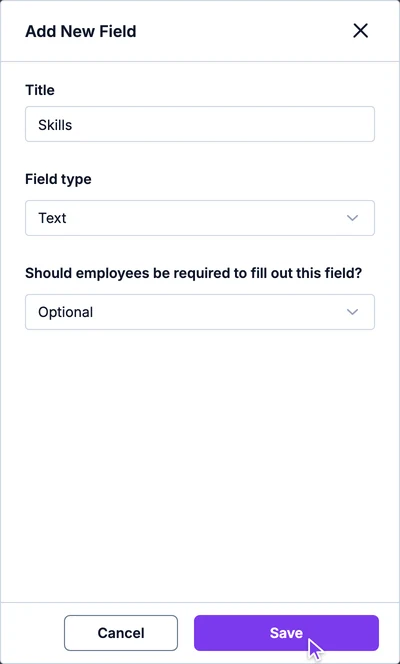
Click Add new field at the top of the list.
Enter a title and choose the field type: User, Date, Text or Link. A User field can also show a dotted line on the org chart.
Choose whether employees must fill it in, then click Save.
Sync with Slack
By default, OrgaNice fills in profiles from what's already in Slack. Turn on Enable data push to Slack and choose the matching Slack field for each OrgaNice field, and OrgaNice also updates Slack profiles.
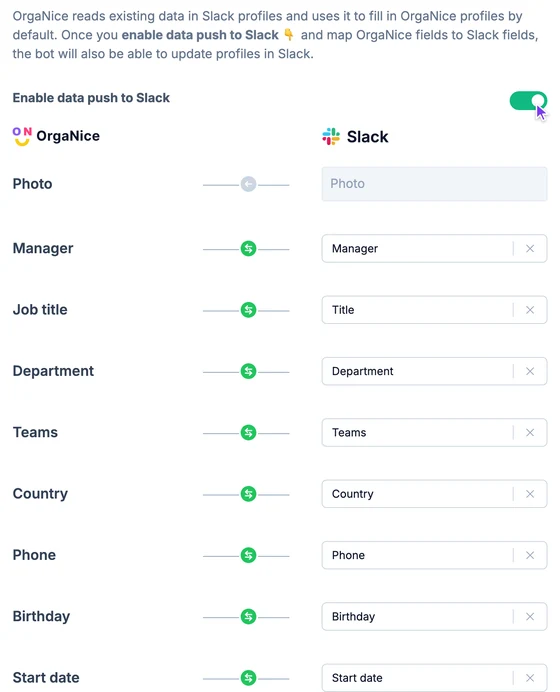
For syncing to work, each field's data source in Slack must be API, which needs a Slack admin. See how to sync Slack profile fields.
Data collection
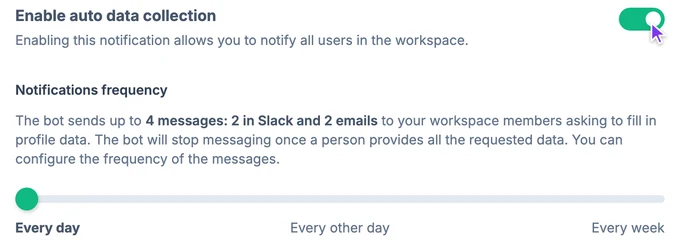
Turn on Enable auto data collection and the bot asks people for the profile details they're missing. It sends up to four messages, two in Slack and two by email, and stops once a person has filled everything in. Under Notifications frequency, choose Every day, Every other day or Every week.
Messages
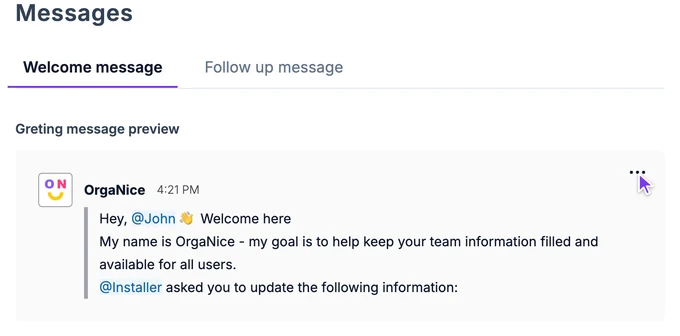
Check the bot's Welcome message and Follow up message. To change one, click the three dots on its preview and choose Edit, or Reset default message to undo your changes.
Reports
Turn on Enable org chart reports to get a weekly report of people who still haven't filled in their profiles after all four messages. From the report, you can fill in their details yourself.
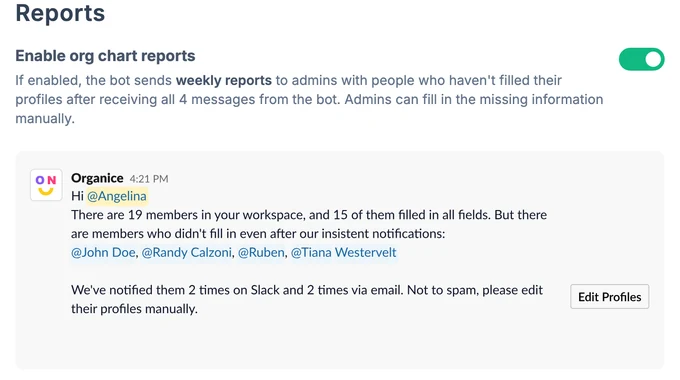
Chart members
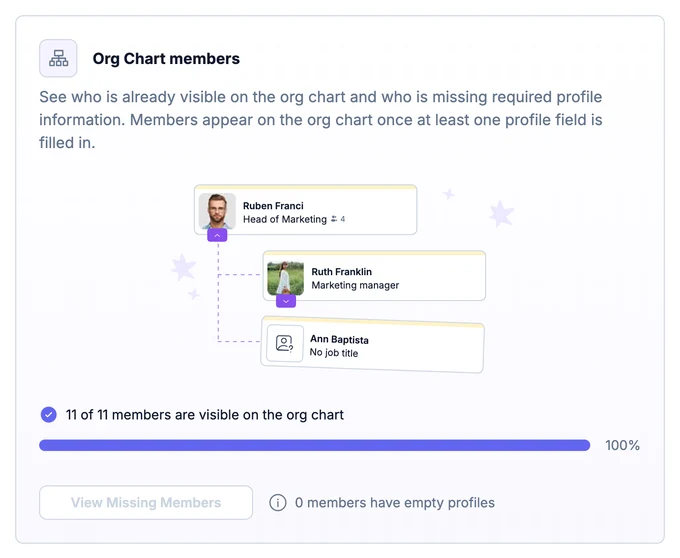
See how many people are on the org chart and who is missing required details. People appear on the chart once at least one of their profile fields is filled in. Click View Missing Members to see who has an empty profile.
Hiring
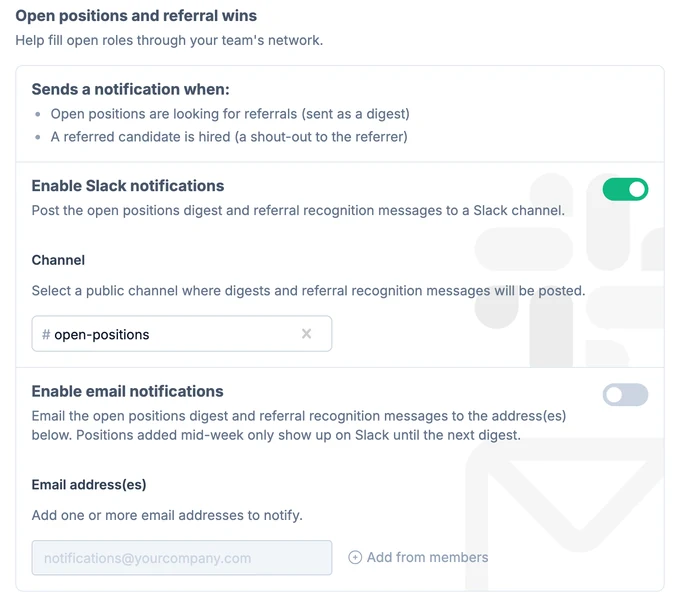
OrgaNice can post a digest of open positions that are looking for referrals, and a shout-out when a referred candidate is hired. See how referrals work.
- Enable Slack notifications: choose the public channel for the digest and the shout-outs.
- Enable email notifications: add the email addresses to send them to. Positions added mid-week show up only in Slack until the next digest.
What's next
- Build or edit the chart: add positions, departments and teams, and move people.
- Introduce the org chart to your team with a ready-made announcement.
- Share how people update their profile and find colleagues.