

How to change your personal settings
For everyoneUpdated Nov 1, 2026
Choose your time zone, get your notifications in Slack or by email, opt out of birthday announcements and connect Google Calendar.
Your personal settings apply only to you: your time zone, how OrgaNice reaches you, your birthday announcement and your Google Calendar.
Open your settings
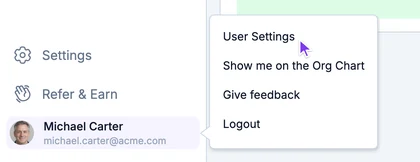
In the OrgaNice web app, click your name at the bottom left.
Choose User Settings.
Account
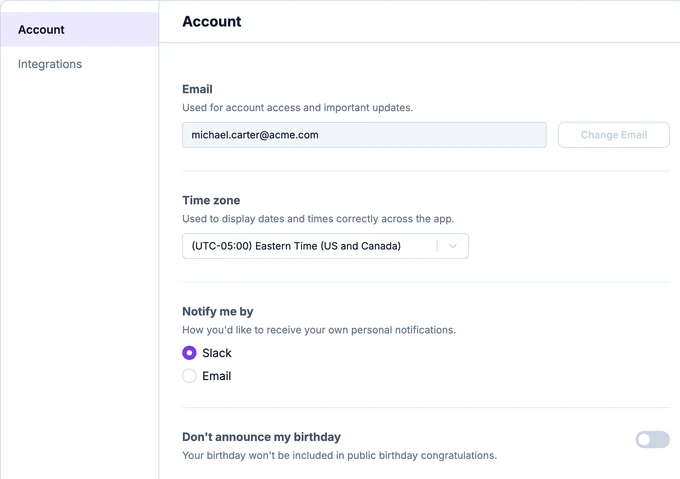
- Email: the address you sign in with. It comes from your Slack profile.
- Time zone: used to show dates and times correctly, for example in the calendar and on time off requests.
- Notify me by: get your own notifications, like time off decisions, reward updates and reminders from the bot, in Slack or by Email.
- Don't announce my birthday: your birthday is left out of public birthday wishes.
Changes are saved as soon as you make them.
Integrations
On the Integrations tab, click Connect next to Google Calendar to add your approved time off to your Google Calendar automatically. See how to connect Google Calendar.
To change your job title, manager, birthday and other profile details, update your profile instead.