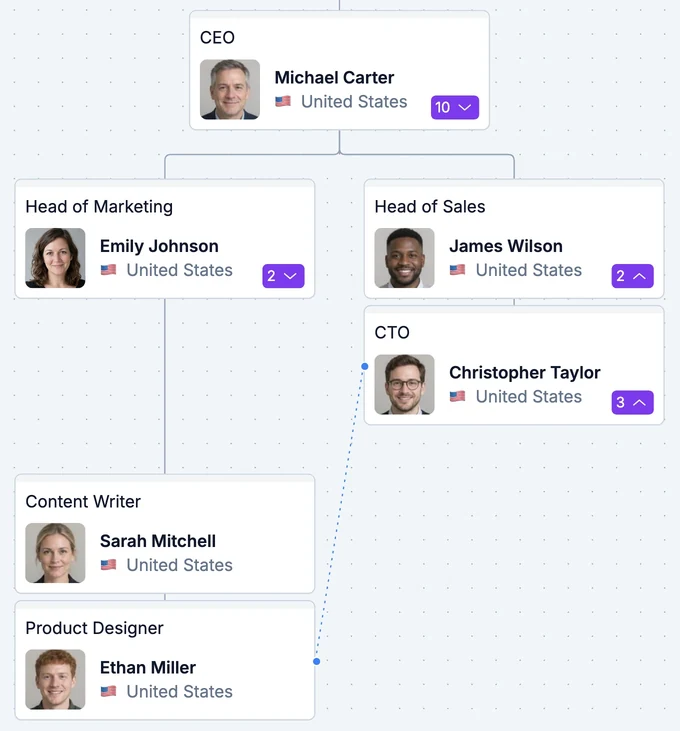
How to add a dotted line to an org chart
For adminsUpdated Oct 29, 2026
Show secondary or matrix reporting lines on your org chart with a custom profile field.
A dotted line shows a secondary reporting relationship: someone reports to their manager day to day but also works with another leader on certain projects. In OrgaNice, you add it with a custom profile field.
Steps
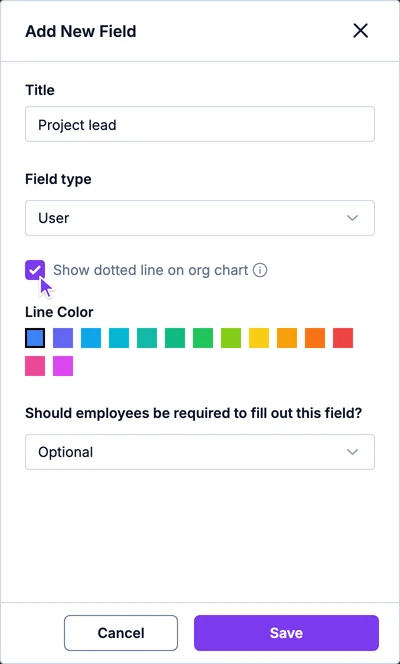
In the OrgaNice dashboard, go to Settings › Profile Fields and click Add New Field.
Enter the field name (for example, the role the person reports to), select the field type and check Show dotted line on org chart. Make sure the field is set to show on the chart, then click Save.
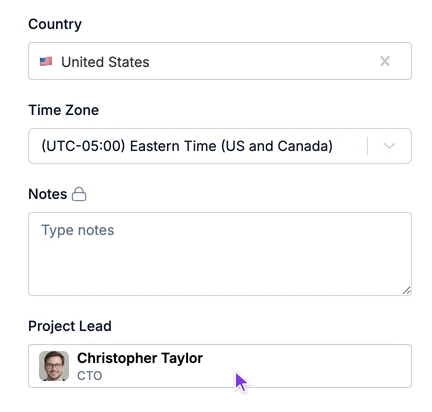
Open the org chart, select the employee's profile and set the new field to the person they also report to.
Result
The dotted-line relationship appears on the org chart.