

How to edit your org chart
For adminsUpdated Nov 1, 2026
Add positions, departments and teams, move people to a new manager, and unassign or close positions on the org chart.
Whether you built your chart with AI or are starting from scratch, you keep it up to date on the Org Chart page of the OrgaNice web app. Each card is a position: a job title, and the person in it or an open position.
Only OrgaNice admins can edit the chart. Everyone else can update their own profile, which also updates their place on the chart.
Add a position, department or team
Click Add to chart at the top right and choose what to add.
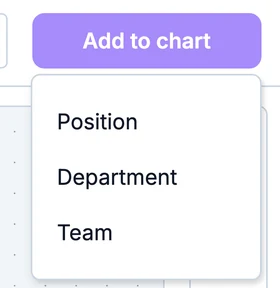
- Position: an open position. Enter the Job title and choose the Parent element: the position or department it sits under. Check Include in referrals to look for candidates through referrals. Click Create position.
- Department: enter a Title, pick a Color, and choose the Parent element and the Department manager. The manager's position moves into the department with everyone under it. Click Create.
- Team: enter a Title, pick a Color and choose a Team manager. Teams can cut across departments: add people to a team with the Teams field in their profile. Click Create.
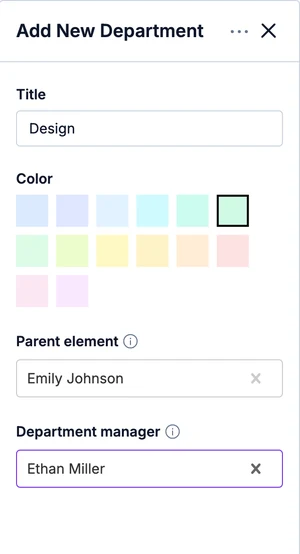
Departments show as colored bars on the chart, with their people under them.
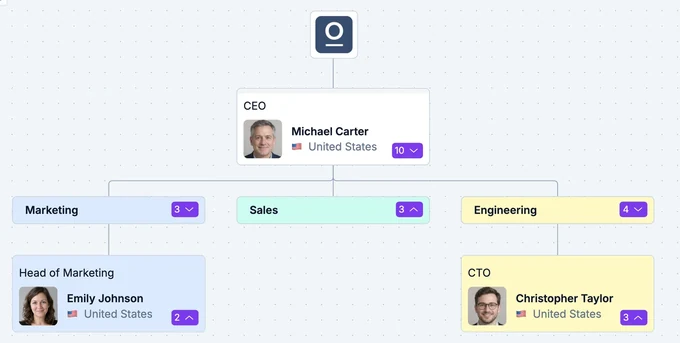
Put someone on the chart
People show up on the chart once they're in a position. To place someone:
- Click an open position and choose them under Assign Employee.
- Or click their card, or find them in Manage Employees, and set their Manager. OrgaNice puts them under that manager.
New hires can also pick their open position themselves when they update their profile.
Move people
- Drag and drop: drag a card onto another card. The person moves under that position, together with everyone who reports to them. Departments can be dragged the same way.
- Change the manager: click the card and choose another Manager.
Edit someone's details
Click a card to open the person's profile. On Profile Details, change their job title, department, teams, manager, start date, birthday, country, time zone and any custom fields. Fields outlined in yellow are required and still empty. Time Offs shows their time off and balance, and Activity Log the history of changes.
Unassign or close a position
Click the card, then the three dots at the top right of the profile:
- Unassign: takes the person out of the position. The position stays on the chart as an open position, for example when someone leaves and you're hiring a replacement.
- Close position: deletes the position from the chart.
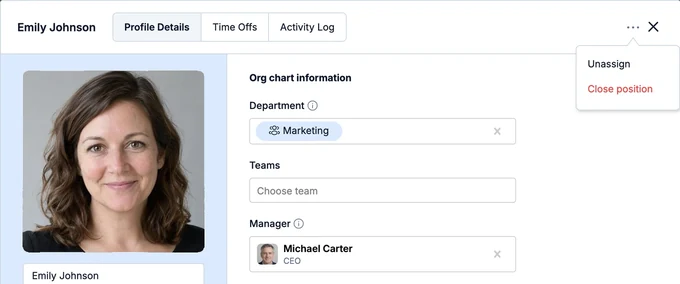
Closing a position, or deleting a department, also removes everyone under it from the chart. Their accounts and profiles stay, but they're no longer on the chart. To keep them, first move them to another manager.
To change a department, click it on the chart; for a team, click it in the Teams view. You can rename it, change its color and manager, or delete it from the three dots menu.