

How to manage employee data
For adminsUpdated Nov 1, 2026
Edit everyone's profiles in one table, see who's missing details with Data completion, and export the list to CSV.
Manage Employees is a spreadsheet of everyone in your workspace. Use it to fill in missing details, fix mistakes in bulk and see how complete your data is. Open Employees in the OrgaNice web app, click the menu next to the title and choose Manage Employees.
Only OrgaNice admins see Manage Employees.
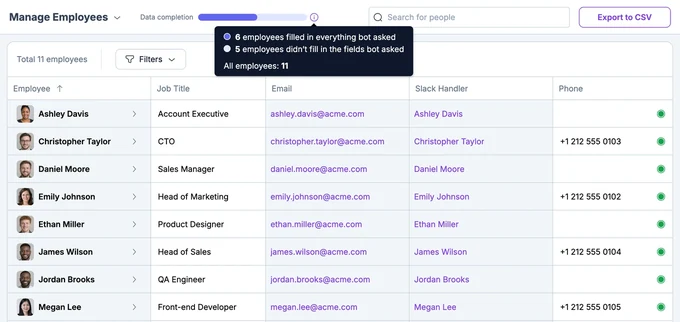
Edit details
Each row is a person, with columns for Job Title, Email, Slack Handler, Phone, Manager, Teams, Department, Country, Birthday and your other profile fields.
- Click a cell and type, or choose from the list, to change it.
- Copy and paste values across several rows to update them at once. OrgaNice asks Update multiple rows? before saving.
- Click the arrow next to a name to open the full profile.
- The dot at the end of a row shows whether the person is on the org chart. Click it to find them there.
Use Search for people and Filters to narrow the list, and Export to CSV to download it.
Data completion
The Data completion bar at the top shows how many people have filled in every required field. Hover over the i next to it to see:
- how many employees filled in everything the bot asked,
- how many didn't, and
- how many employees there are in total.
The same numbers are on the Home page of the web app, with a link to everyone's details.
To raise them:
- Turn on auto data collection so the bot asks people for what's missing, and weekly org chart reports to see who still hasn't answered. See Data collection.
- Fill in details yourself here.
- Make only the fields you really need Required in Profile fields.