

How to find people on the org chart
For everyoneUpdated Nov 1, 2026
Search the org chart, browse it by department, team or country, and look people up in the Employees directory.
Looking for a colleague, or who's on a team? Use the org chart and the Employees directory in the OrgaNice web app. Open it from Slack: OrgaNice › Home tab › Dashboard › Open in App.
Search the org chart
Open Org Chart and type a name, team or department in Search for people, teams and departments at the top. Click a result to open it on the chart.
On the chart:
- Click the number on a card to show or hide the people who report to that person.
- Use + and − on the left to zoom, and the frame button to fit the whole chart on screen.
- Click a card to see the person's profile.
To jump to yourself, click your name at the bottom left and choose Show me on the Org Chart.
Browse by department, team or country
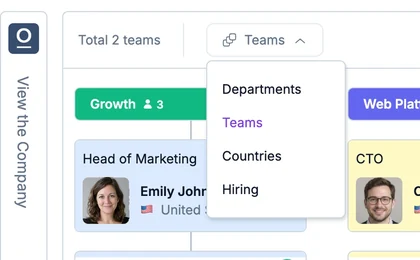
The panel on the right of the chart shows how many teams, departments and countries you have. Click it to switch to a view that groups people by Teams, Departments, Countries or Hiring (open positions). Each column is a group with its people.
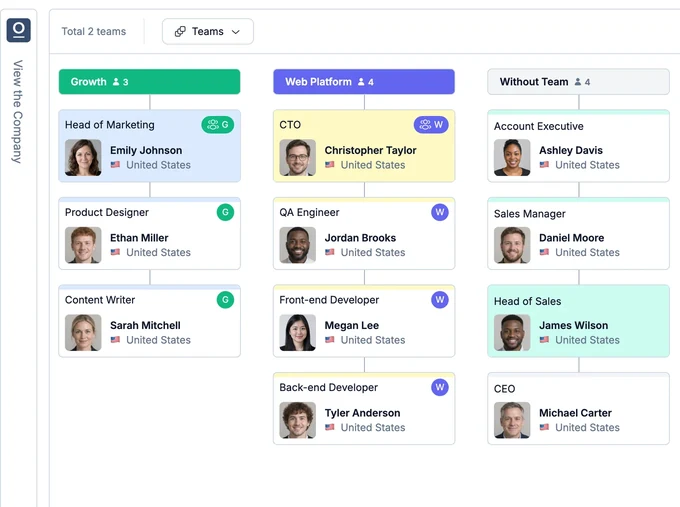
Switch the grouping with the menu at the top, and click View the Company on the left to go back to the chart.
Use the Employees directory
Open Employees in the menu on the left for a card for each person, with their photo, job title, country and department. Click the icons on a card to email the person or message them in Slack.
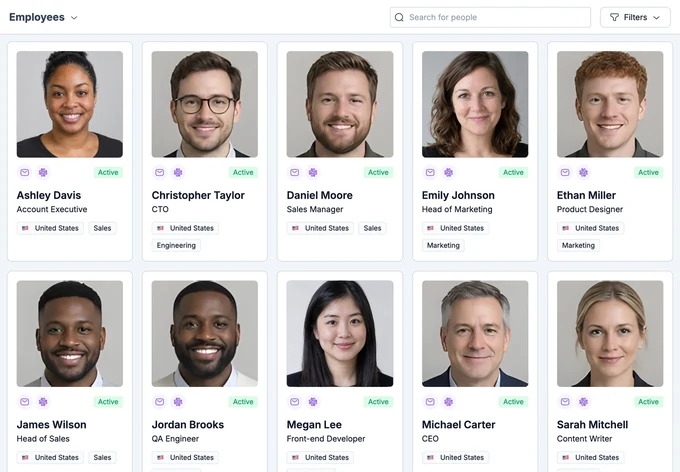
Type a name in Search for people, or click Filters to show only some managers' teams, departments, teams or countries.
Admins also get Manage Employees, a table to edit everyone's details. See how to manage employee data.