How to share your org chart
For everyoneUpdated Nov 1, 2026
Share your org chart with a public link and choose exactly what it shows.
You share your org chart with a public link. Each link has its own settings, so you can make one for partners and investors and another that shows open positions to candidates.
Steps
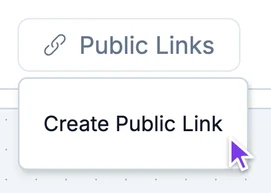
Open the org chart, click Public Links at the top and choose Create Public Link.
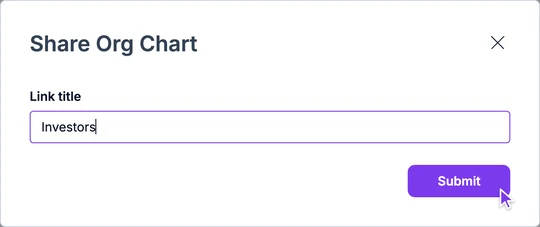
Enter a title for the link and click Submit. The link opens in a new tab.
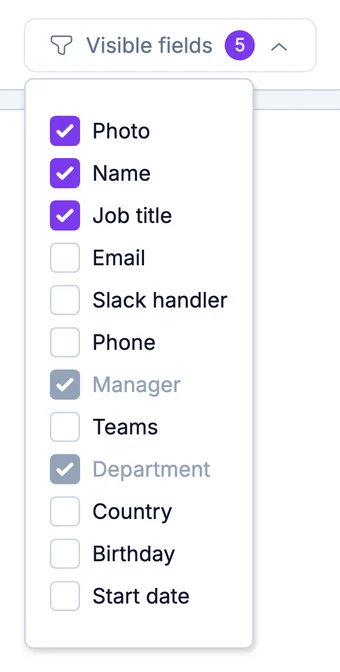
Choose what people can see. Visible fields sets what each card shows; new profile fields are hidden until you turn them on. Visible blocks sets which views are shared: Departments, Teams, Hiring, Countries and the sidebar.
Click Go to preview to check what's public. Changes can take up to 30 seconds to show.
Click Copy Link and send it.
Result
Anyone with the link sees the org chart with the fields you chose.
Your links are listed in the Public Links menu; choose one to open it again. To edit or delete it, click the three dots on the right of Copy Link.