

How to add OrgaNice to Slack
For everyoneUpdated Nov 1, 2026
Install OrgaNice in your Slack workspace from our website, the Slack App Directory or inside Slack, then invite your team.
You can install OrgaNice from our website, from the Slack App Directory or from inside Slack. Each takes a minute, and each ends with Slack asking you to allow OrgaNice in your workspace: click Allow.
Install from the OrgaNice website
On organice.app, click Try it free.

On the Create an account page, click Add to Slack.

Pick your Slack workspace and click Allow. OrgaNice opens in your browser.
Sign up via Email only leaves us your details for now; we'll get in touch. To start right away, use Add to Slack.
Install from the Slack App Directory
Open the OrgaNice page in the Slack App Directory and click Add to Slack. If OrgaNice is already in your workspace, the button says Open in Slack.
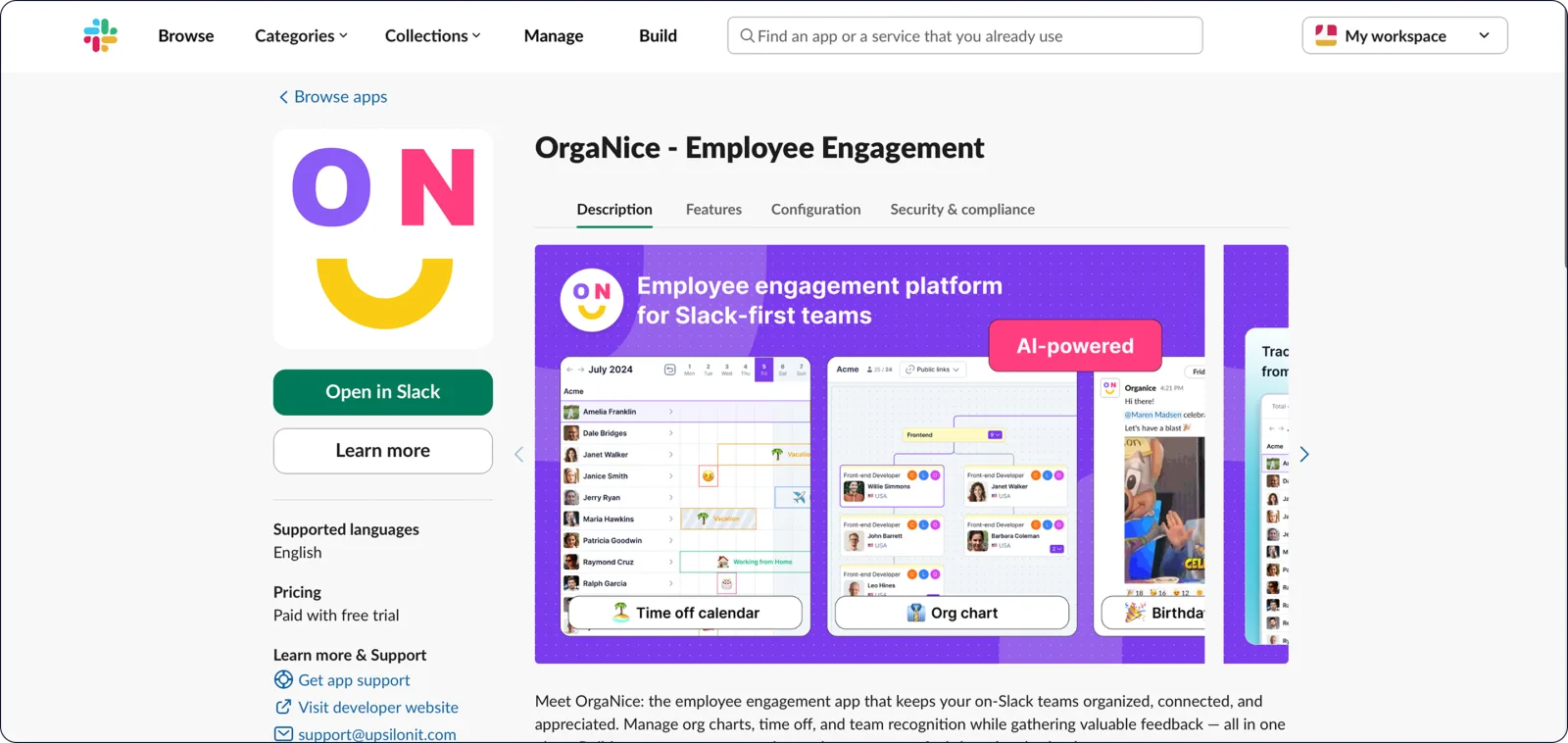
Click Allow.
Install from inside Slack
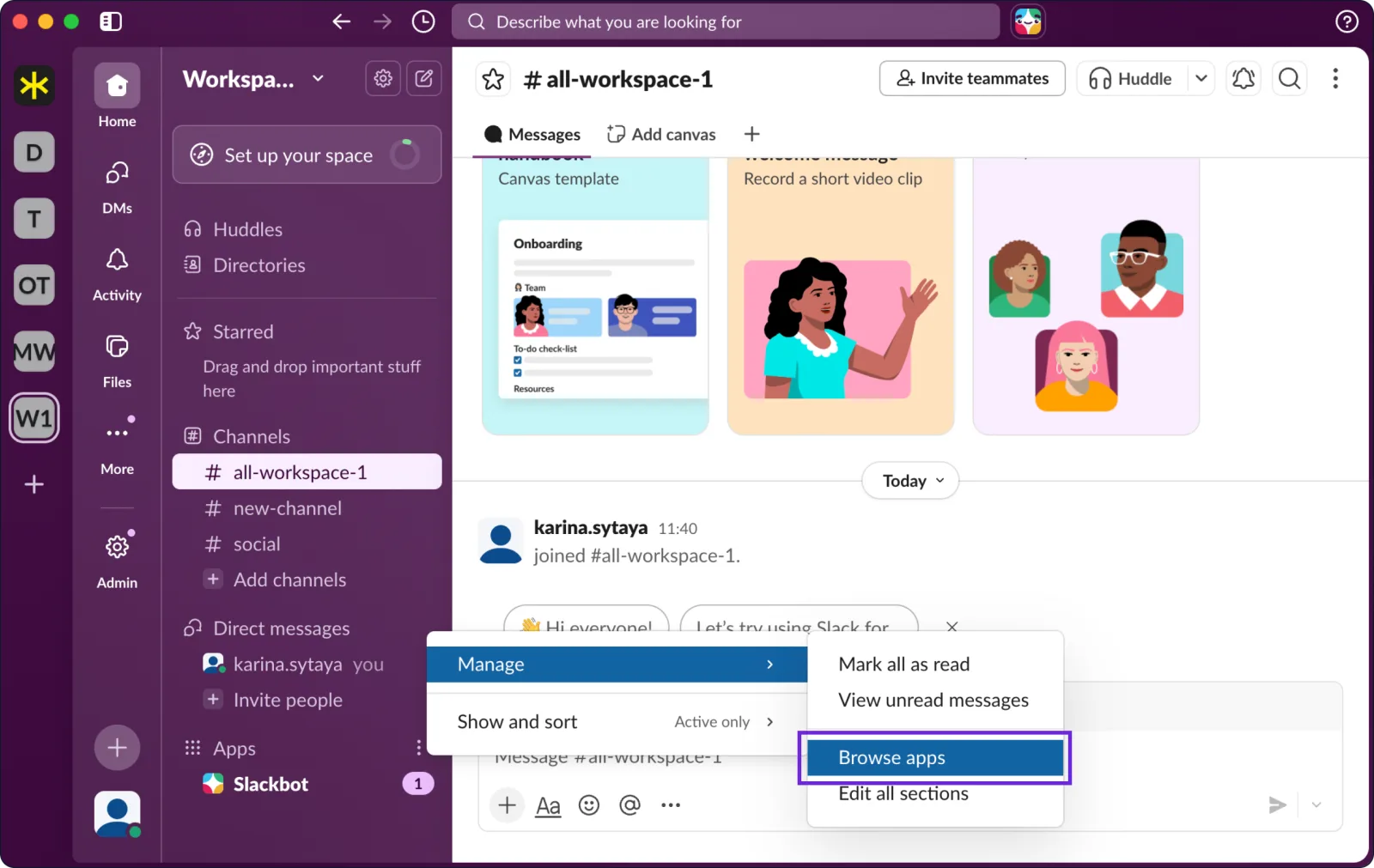
In Slack, click Apps in the sidebar, then Manage › Browse apps.
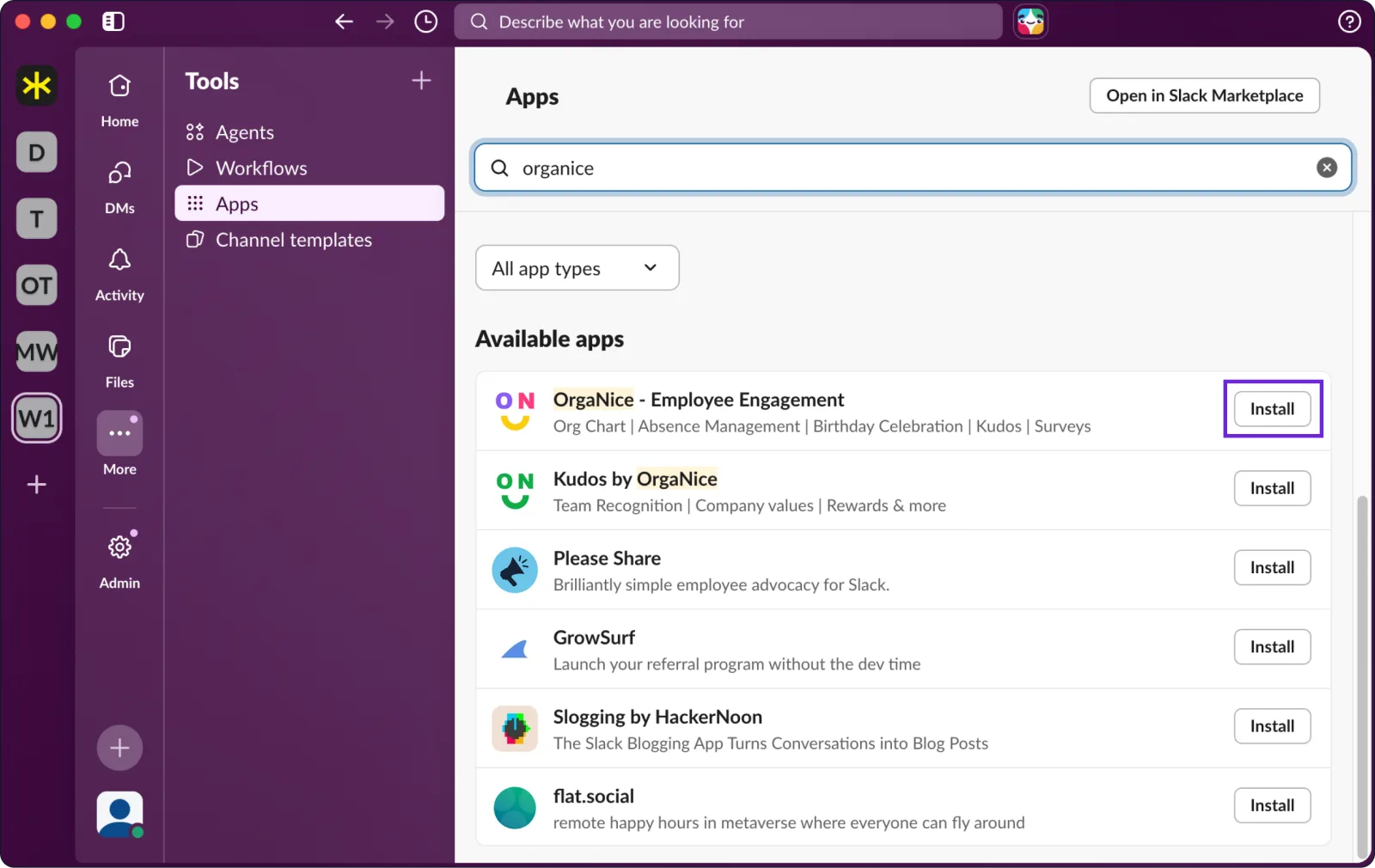
Search for OrgaNice and click Install.
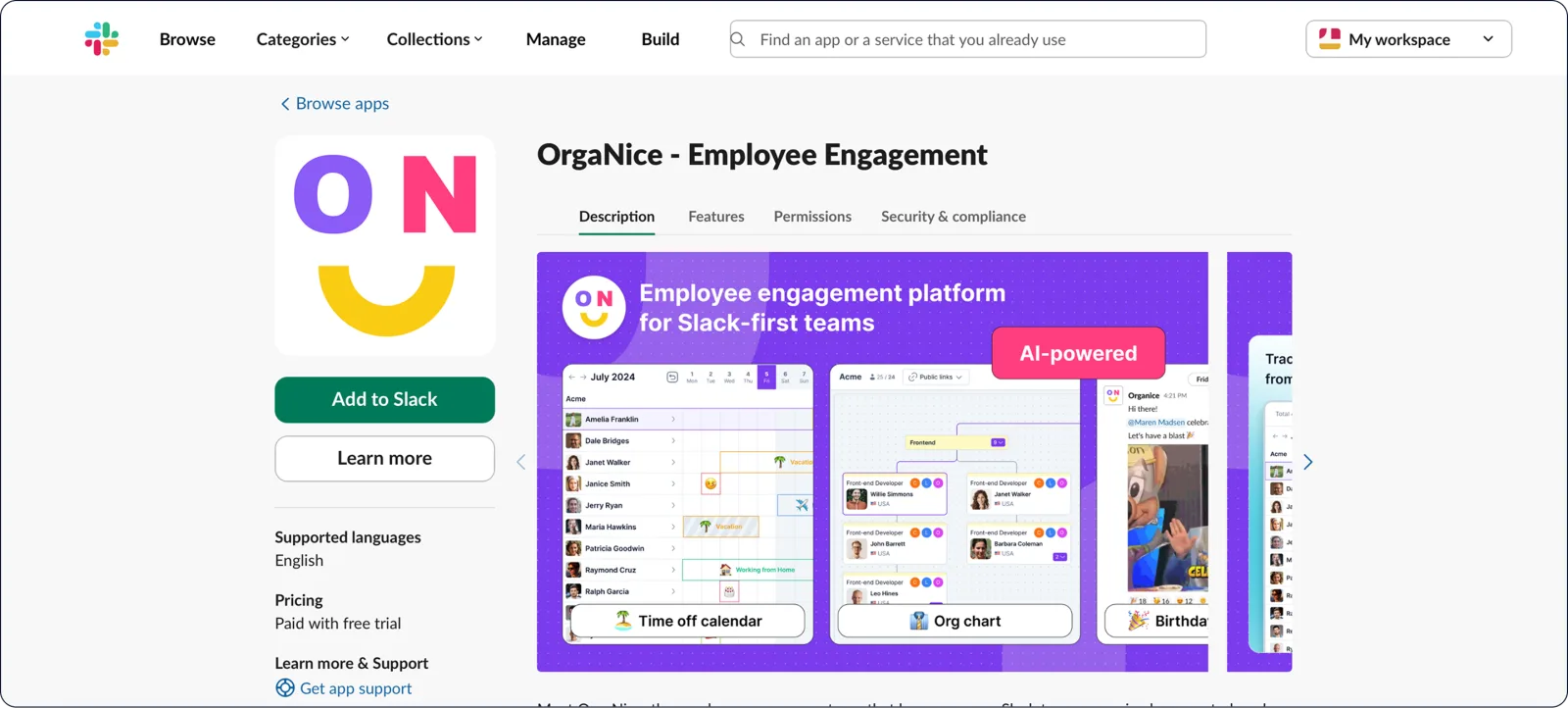
In the browser window that opens, click Add to Slack, then Allow.
Finish setup
Once you allow OrgaNice, pick the features you want to try during your 14-day free trial and click Finish setup. You can change them anytime in Settings.
Result
OrgaNice is installed in your workspace. To find it in Slack later, open Apps in the sidebar and click OrgaNice.
Invite your team
OrgaNice gets its people from your Slack workspace: everyone in it shows up in OrgaNice. To add someone, invite them to Slack with Slack's guide, Invite new members to your workspace. Depending on your workspace settings, you may need to be a Slack Workspace Owner or Admin, or to ask one. Once they join Slack, they appear in OrgaNice too.
You can't add or remove people in OrgaNice itself. Manage everyone in Slack, and OrgaNice syncs the changes.
Next, choose your admins, set up the features you want and introduce them to your team.