

How to create an OrgaNice workspace
For everyoneUpdated Nov 12, 2026
Sign up on the OrgaNice website with your work email, confirm the link we send you and set up your workspace, no Slack needed.
You can start using OrgaNice with nothing but your work email. Sign up on our website, confirm the link we email you, and your workspace is ready, with you as its first admin. Slack is optional: you can connect it later from Settings.
Sign up
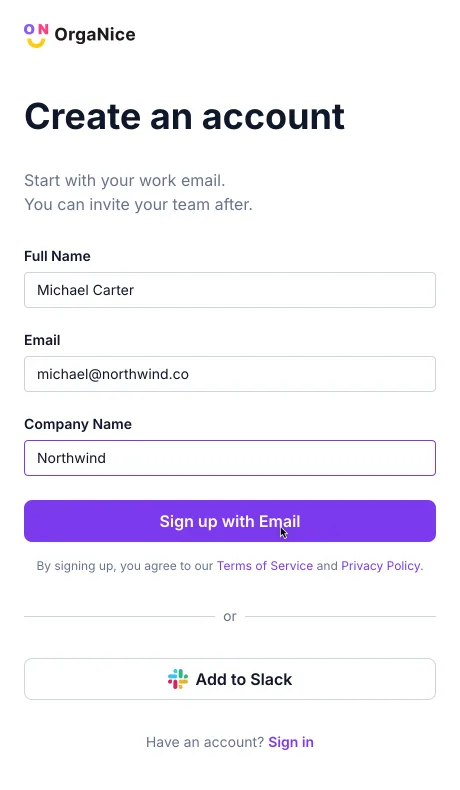
On organice.app, click Try it free. The sign-up page of the OrgaNice web app opens.
Fill in the form at the top of the page: Full Name, Email (use your work address) and Company Name. Then click Sign up with Email.
The page now says Check your email. Look for the confirmation email in your inbox, and in your spam folder if it isn't there.

Open the email Confirm your email to create your OrgaNice workspace and click Create my workspace.
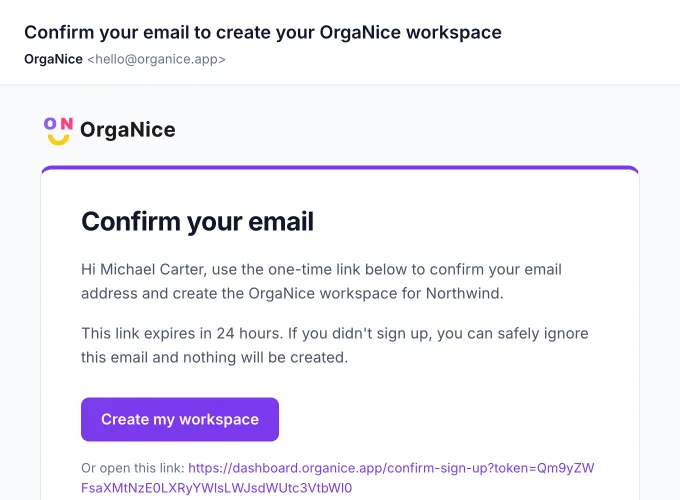
The confirmation link works once and expires after 24 hours. If it has expired, sign up again. If you already opened it, sign in with your email instead: your workspace is waiting for you.
Prefer to start from Slack? Below the sign-up form, click Add to Slack instead. See how to install OrgaNice in Slack.
Set up your workspace
Once you confirm, you're signed in and the setup opens.
Pick the features you want to try during your 14-day free trial. Every feature is included in the trial.
Work through Finish your checklist: each feature you picked has a few steps, like choosing your profile fields or adding a time off policy.
The checklist ends with Your team:
- Invite your colleagues opens Manage seats, where you invite people by email. See how to invite your team by email.
- Connect Slack opens the Slack settings, if your team uses Slack. See how to connect Slack.
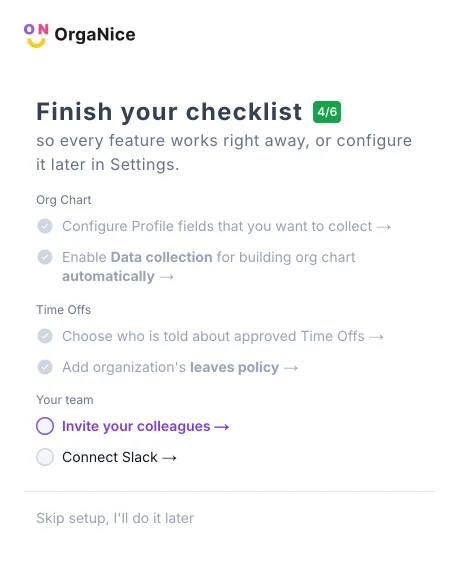
Click Finish setup. You can also click Skip setup, I'll do it later at any point and come back to it from Settings.
Result
Your OrgaNice workspace exists and you're its admin. Next, invite your team, choose more admins or review the free trial and pricing.