

How to manage your subscription
For adminsUpdated Nov 1, 2026
Manage seats and access requests, switch between monthly and yearly billing, see invoices or cancel your subscription.
Everything about your plan is in Settings › Pricing: the apps you pay for, your seats, your billing period and your invoices. To choose apps and subscribe for the first time, see free trial and pricing.
Only OrgaNice admins can open Pricing.
Manage seats
A seat gives one person access to OrgaNice. Under Users with access, you see how many seats are assigned.
- With Provide an OrgaNice seat for every active Slack member on, everyone in your Slack workspace gets a seat, including people who join later.
- With it off, you choose who gets one.
Click Manage seats.
On the Members tab, check people to give them access, or uncheck them to free their seat. Use With Access and Without Access to filter the list.
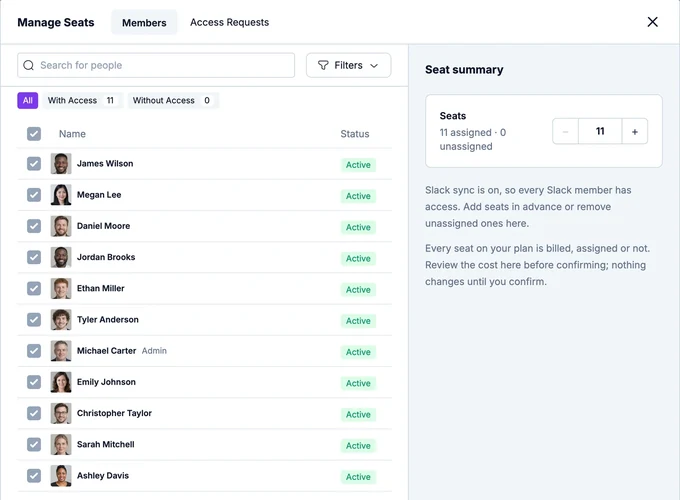
Under Seat summary, add seats in advance with +, or remove unassigned ones with −.
Check the cost in the summary and confirm. Nothing changes until you confirm.
Every seat on your plan is billed, whether it's assigned or not. Seats you add are charged right away for the rest of your billing period; seats you remove come off your next invoice.
Access requests
People without a seat see Access Disabled when they open OrgaNice. When you choose seats yourself, they also get a Request access button. Their requests show under Access requests on the Pricing page: click Review requests, or open the Access Requests tab in Manage seats, to approve them.
Change apps
Turn apps on or off on the Pricing page. Adding an app charges you today for the rest of the billing period. Removing one takes effect at your next invoice, with no refund for unused time, and removing an app from All features ends the bundle discount. Your data is kept either way.
Switch between monthly and yearly billing
Under your subscription, click Switch to yearly billing (save 20%) or Switch to monthly billing and confirm. The new period starts when your current one ends; until then, changes use your current plan. To undo it before then, click Cancel period change.
Invoices and payment methods
Click Manage billing or Invoices & payment methods. Our payment provider, Stripe, opens in the same tab, where you can download invoices, update your card and change your billing details.
Cancel your subscription
Click Cancel subscription under your billing period, then confirm. You keep access until the end of the period you paid for, shown as Access ends on, and the subscription doesn't renew.
When a trial or subscription ends
When your 14-day trial ends without a subscription, or a subscription expires, OrgaNice stops working for your team until an admin pays: the Slack Home tab and the web app say the subscription is inactive. Your data is kept, so everything is back as soon as you click Pay Now on the Pricing page.
For more than 500 seats, contact us about an Enterprise plan.