

How to remove a member or delete an invitation
For adminsUpdated Nov 12, 2026
Remove someone's access to OrgaNice or cancel an invitation from Manage seats, and bring them back later by inviting them again.
When someone leaves your company, remove them from OrgaNice so they can no longer sign in. You can also delete an invitation that hasn't been accepted yet. Both happen in Manage seats on the Pricing page.
Only OrgaNice admins can remove members. If your workspace uses Slack, people who joined from Slack are removed in Slack: remove them from your Slack workspace and OrgaNice follows.
Remove a member
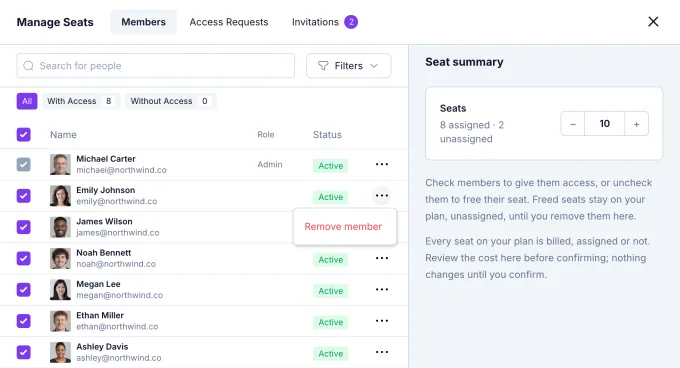
Open Settings, select Pricing and click Manage seats.
On the Members tab, click the three dots at the end of the person's row and choose Remove member.
Read what happens and click Remove member.
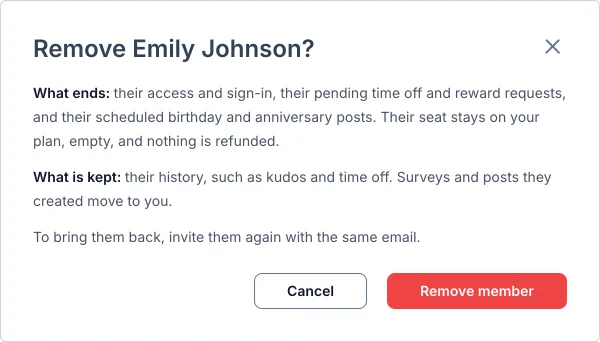
What ends and what is kept
- Ends: their access and sign-in, their pending time off and reward requests, and their scheduled birthday and anniversary posts.
- Kept: their history, such as kudos and time off. Surveys and posts they created move to the admin who removed them.
- Their seat stays on your plan, empty, and nothing is refunded. Give it to someone else, or remove unassigned seats in Manage seats.
Delete an invitation
On the Invitations tab, click the three dots on the row and choose Delete invitation, then confirm. The sign-in link stops working, and the seat stays on your plan, empty.
Why can't I remove someone?
When Remove member or Delete invitation is grayed out, hover over it to see why:
- "You can't remove yourself." Ask another admin to do it.
- "The person who created the workspace can't be removed."
- "The workspace needs at least one admin." Make someone else an admin first.
- The person is linked to a Slack account, and Slack would add them back. Remove them from your Slack workspace instead.
- "Slack is still importing your people." Wait until the import has finished, then try again.
Bring someone back
There's no list of removed members. To bring someone back, invite them again with the same email address. They return with their profile and history, and take a seat as with any invitation.
Result
The person can no longer sign in to OrgaNice, and their data stays in your workspace.