

How to connect Slack to your OrgaNice workspace
For adminsUpdated Nov 12, 2026
Connect Slack to a workspace you created on the website, see what the import does, reconnect after an uninstall, or disconnect.
If you created your workspace on our website, you can connect Slack whenever your team is ready. Your team then gets notifications, requests time off and gives kudos without leaving Slack, and everyone in your Slack workspace joins OrgaNice.
Only OrgaNice admins can connect Slack. You also need to be allowed to install apps in your Slack workspace.
Connect Slack
Open Settings and select Slack.
Read the Connect Slack to your workspace card and click Connect Slack.
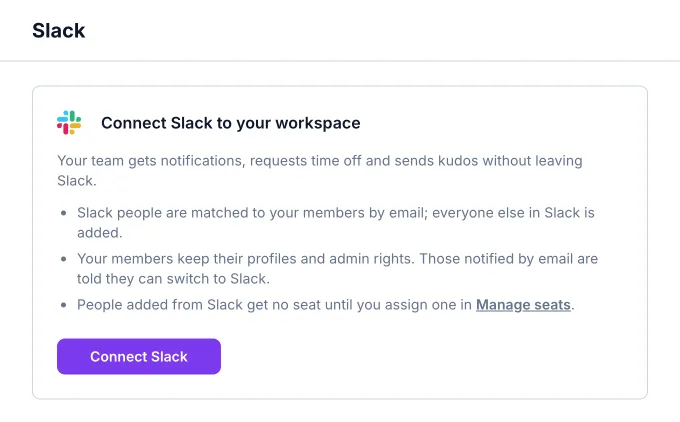
Slack opens. Pick your Slack workspace and click Allow. You come back to the Slack settings in OrgaNice.
What the import does
Right after you connect, OrgaNice brings in your Slack people. The page says Importing your Slack people and refreshes by itself until the import is done.
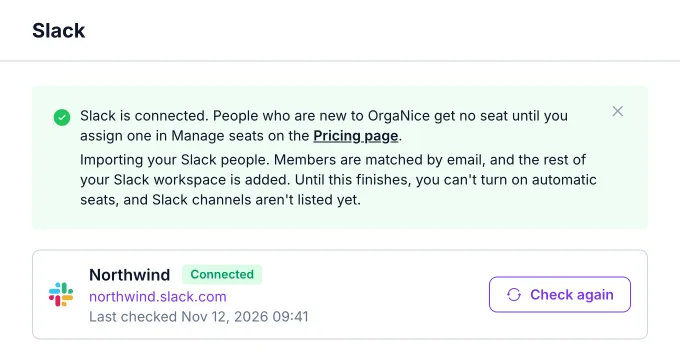
- Matched by email: people already in OrgaNice are linked to their Slack account by email address. They keep their profile, history and admin rights.
- Everyone else is added: people in Slack who aren't in OrgaNice yet join your workspace.
- Seats: people added from Slack get no seat until you give them one in Manage seats. Once Slack is connected, you can also turn on Provide an Organice seat for every active Slack member.
- An email for your members: members who get their notifications by email receive an email with the subject "Your workspace name" is now on Slack with OrgaNice, for example Northwind is now on Slack with OrgaNice. It's headed You can get your notifications in Slack, and its Open my settings button takes them to their personal settings, where they can switch Notify me by to Slack.
While the import runs, you can't turn on automatic seats or remove members, and Slack channels aren't listed yet. If the import fails, the page shows why.
Reconnect Slack
If someone uninstalls the OrgaNice app in Slack, the Slack settings show Slack is disconnected. Click Reconnect Slack and allow the app again. Members, channels, settings and billing are kept, and your Slack people are matched to your members again.
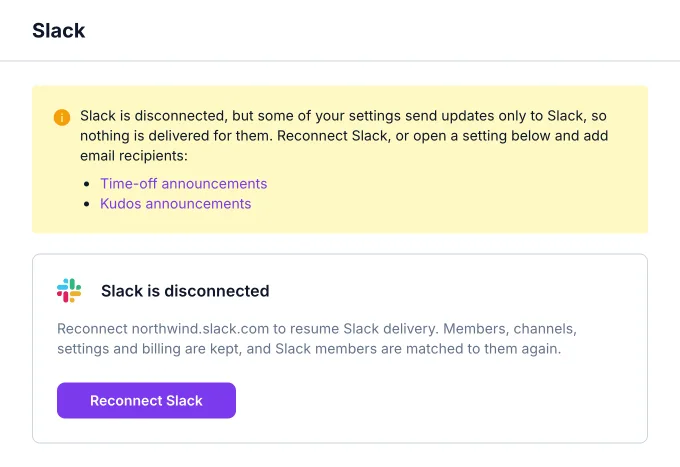
If some settings send updates only to Slack, like time off or kudos announcements, the page lists them: nothing is delivered for them until you reconnect or add email recipients.
Disconnect Slack
There is no Disconnect button in OrgaNice. To stop using Slack, remove the OrgaNice app from your Slack workspace in Slack's app management; depending on your Slack settings, a Slack Workspace Owner or Admin may need to do it. Your OrgaNice workspace stays: everyone keeps signing in with their email, notifications go by email, and your subscription doesn't change. You can reconnect at any time.
If it doesn't work
- "That Slack workspace is already connected to another OrgaNice workspace." Each Slack workspace belongs to one OrgaNice workspace. Nothing was changed in either one.
- "This workspace was connected to a different Slack workspace. Reconnect that one instead." Pick the Slack workspace you used before.
- "Install the app in an individual Slack workspace, not in an Enterprise Grid organization." Install it in one workspace of your organization.
Result
Slack is connected. Next, assign seats to the people who joined from Slack and introduce OrgaNice to your team.