

How to invite your team by email
For adminsUpdated Nov 12, 2026
Invite colleagues to OrgaNice by email from Manage seats, see what it costs, resend expired links and track who hasn't joined yet.
Invite your colleagues to OrgaNice with their email address. Each invitation gives the person a seat and sends them a link to sign in, so they don't need a password or a Slack account.
Only OrgaNice admins can invite people. If your workspace uses Slack, everyone in your Slack workspace joins OrgaNice on their own; invite by email the people who aren't in Slack.
Invite someone
Open Settings and select Pricing. Under your seats, find Invitations waiting and click Invite.
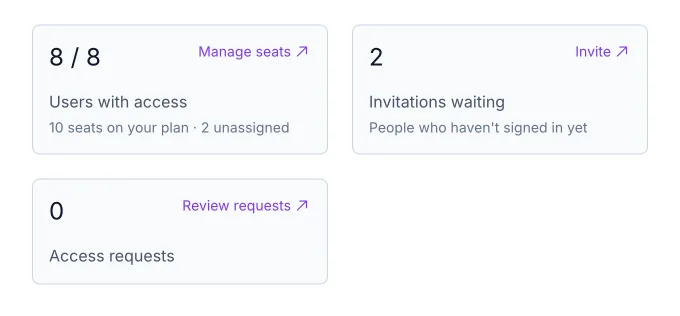
Manage seats opens on the Invitations tab. Click Invite an employee.
Enter their Email and, if you know it, their name in Name (optional).
Check what the invitation does to your plan, under the form:
- During your free trial: no payment is needed.
- On a paid plan: they take a free seat, or a new seat is added. A new seat is prorated for the rest of your billing period and charged to your saved payment method.
- On a lifetime plan with every seat taken: choose the billing period and click Continue to Stripe Checkout to buy an extra seat. Come back once the payment succeeds and send the invitation.
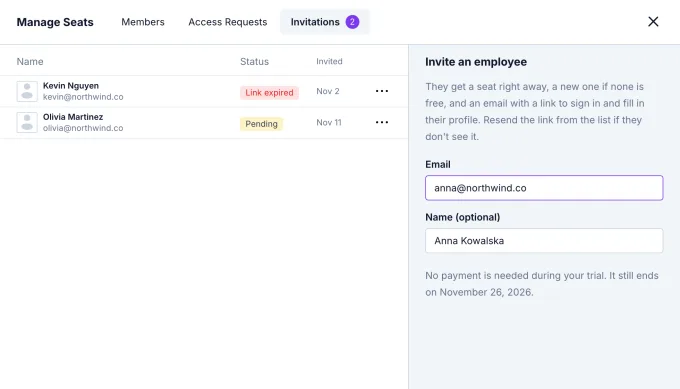
Click Send invitation.
What your colleague gets
They get an email from OrgaNice that names you and your workspace, with a Join OrgaNice button. The link signs them in and works once, for 24 hours. Until they fill in their profile, they get your time zone.
Follow your invitations
The Invitations tab lists everyone who hasn't signed in yet, with the date you invited them:
- Pending: the link hasn't been used and is still valid.
- Link expired: the 24 hours have passed. Send a new link.
To send a new link, click the three dots on the row and choose Resend invitation. People leave the list as soon as they sign in. They can also ask for a new link themselves on the sign-in page.
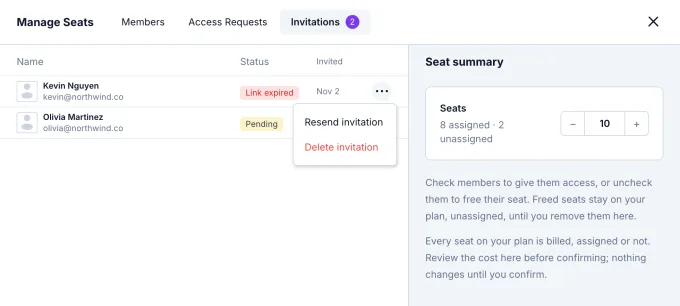
To cancel an invitation, choose Delete invitation. See how to remove a member or delete an invitation.
If it doesn't work
- The address already belongs to a member. Use Resend invitation to send them a new sign-in link.
- The address belonged to someone removed from your Slack workspace. Add them back in Slack, and they return with the next sync.
- The email didn't arrive. The invitation and the seat are kept: ask them to check their spam folder, then resend it.
Result
Your colleague has a seat and an email to join. Once they sign in, they show up on the Members tab of Manage seats. Next, introduce OrgaNice to your team.