

How to request time off in Slack
For everyoneUpdated Nov 1, 2026
Send a time off request from Slack and get a message when it's approved or rejected.
You can request time off from any Slack conversation or from the OrgaNice Home tab.
Steps
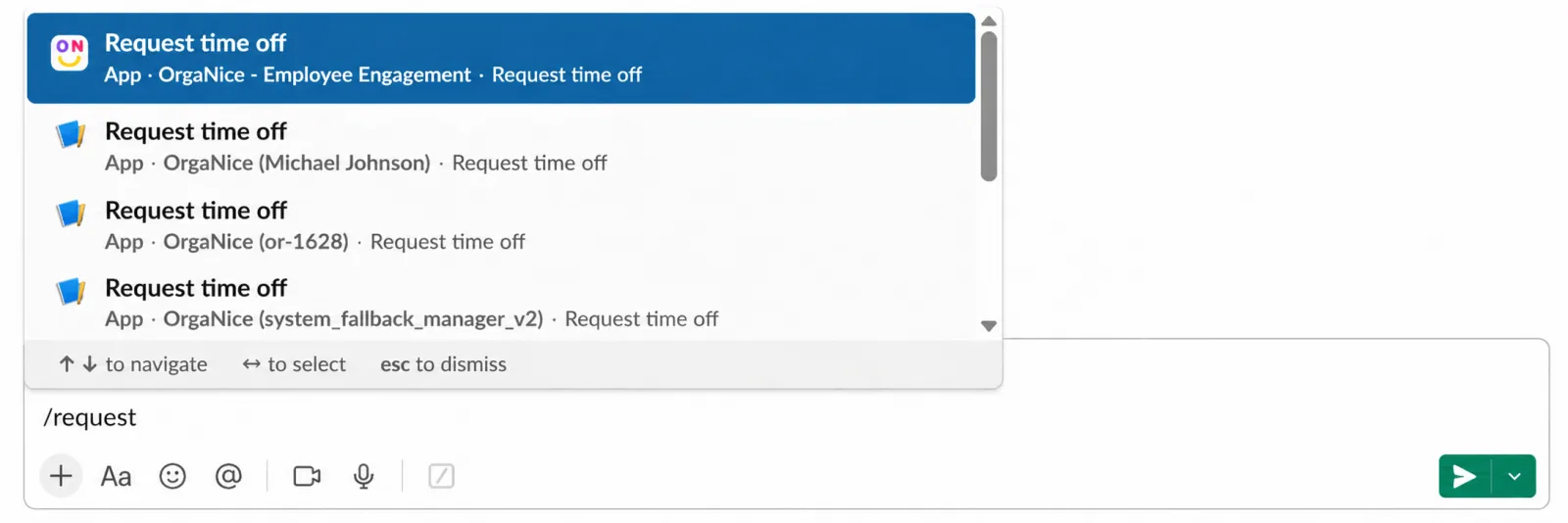
Open the request form in one of two ways:
- In any message box (a DM or a channel), type /request and choose Request time off by OrgaNice.
- Or go to OrgaNice › Home tab › Calendar and click Request Time Off.
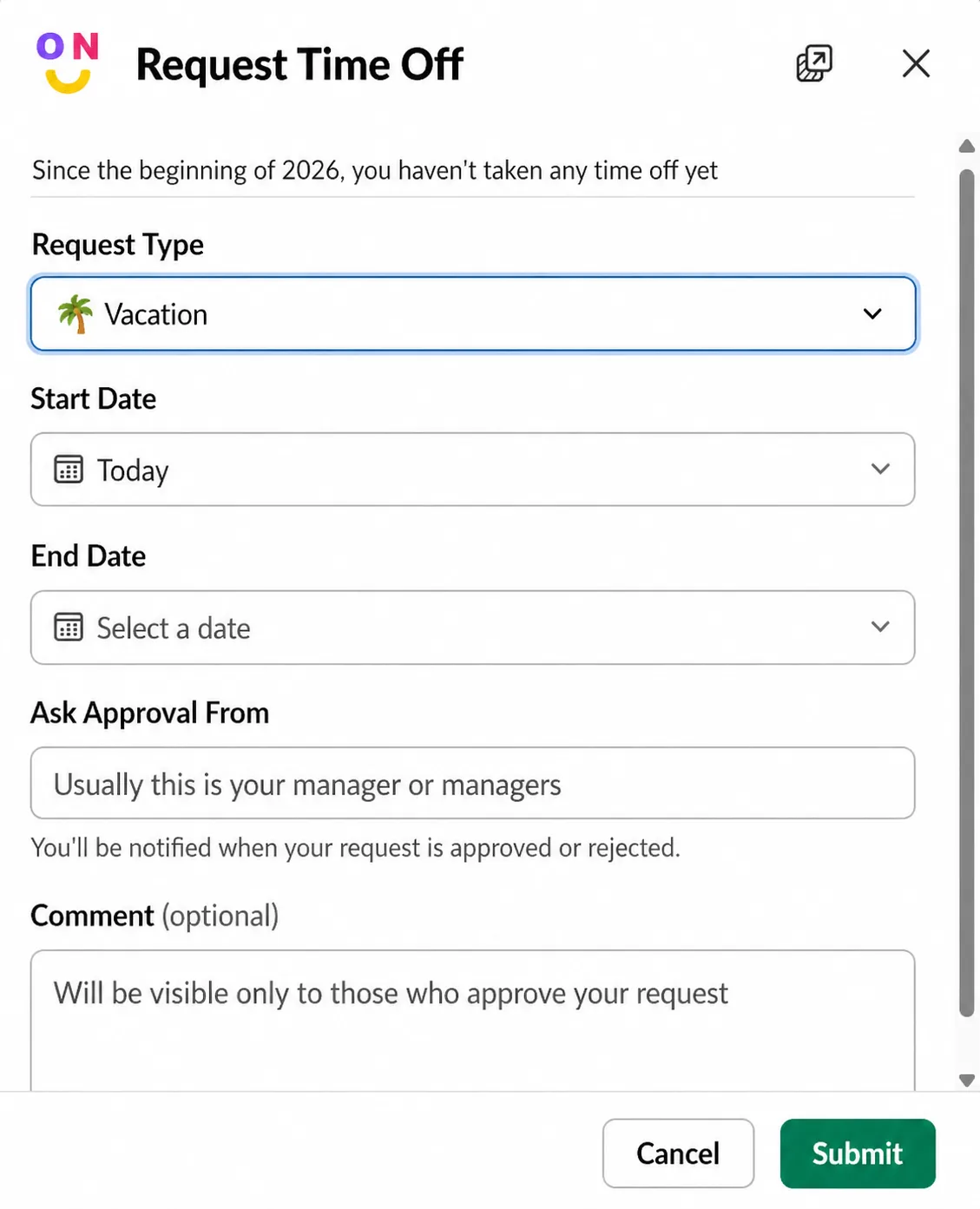
Fill in the form:
- Request Type: the kind of time off, like Vacation or Sick Days. Your admin chooses which types there are.
- Start Date and End Date. For part of a day, see Request time off in hours.
- Ask Approval From: usually your manager or managers. OrgaNice fills in the approvers from your last request, or your manager the first time.
- Comment (optional): a note only your approvers see.
- Attachments (optional): for example a doctor's note.
The form also shows who else is away on those dates, and holidays or weekends that won't be deducted from your balance.
Click Submit.
Result
OrgaNice confirms that your request was sent to your approvers and is waiting for approval, and messages you once it's approved or rejected. See how time off notifications work.
Some types are approved automatically, like work from home in many companies. For those, the form says This request type is configured for automatic approval, Ask Approval From becomes Notify, and your request is approved as soon as you submit it.
Request time off in hours
Need only a few hours, for a doctor's appointment for example? If your admin allows hourly requests for the type you choose, the form shows Hourly Request:
Choose the Request Type and the day.
Check Request in hours.
Choose the Start Time, the Duration (hours), from 1 to 8, and your Timezone. Then click Submit.
Hours come out of your balance as part of a day: 8 hours count as one day, so 4 hours use half a day.
You can also request time off in the web calendar. To cancel a request, delete it.