

How to add and edit time off types
For adminsUpdated Oct 31, 2026
Add your own time off types, like training or parental leave, or remove the ones you don't use.
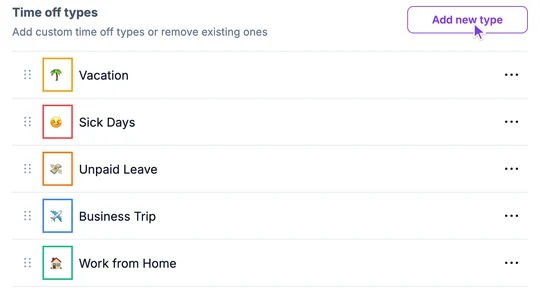
Time off types are the kinds of leave people can request. OrgaNice comes with Vacation 🌴, Sick Days 🤒, Unpaid Leave 💸, Business Trip ✈️ and Work from Home 🏠. Add your own, like training or parental leave, or remove the ones you don't use.
Add a time off type
Go to Settings › Time Offs › Policies & holidays and click Add new type.
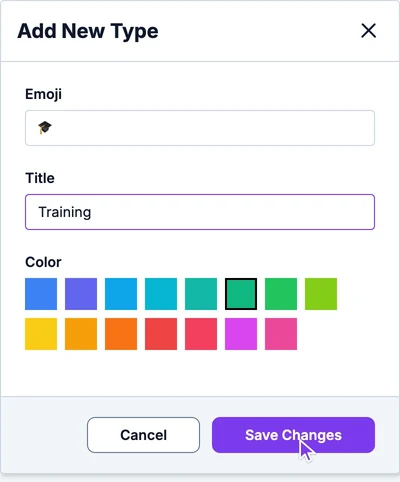
Pick an emoji, enter a title and choose a color. The color marks this type on the calendar.
Click Save Changes.
The type is added to the list, and people can choose it when they request time off.
New types have no allowance yet. To give people a number of days for a type, or to approve its requests automatically, set it up in your time off policies: each policy has a tab for every type.
Edit or delete a type
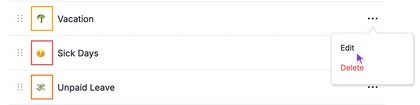
Click the three dots at the end of a type's row and choose Edit or Delete. Drag the handle on the left of a row to change the order of the types.
Deleting a type also deletes every time off request of that type, past and upcoming, and its rules in your policies. This can't be undone. You can't delete the last type.