

How to create time off policies
For adminsUpdated Nov 1, 2026
Set accruals, rollovers, limits and auto-approval for each time off type, then assign people to the policy.
A time off policy sets the rules for each time off type: how many days people get, how they accrue and roll over, the most they can keep and which requests are approved automatically. Create one policy for everyone, or several, for example one per country or for full-time and part-time staff.
Create a policy
Go to Settings › Time Offs › Policies & holidays and click Add new policy.
Enter the policy's title at the top, like US employees.
On General Settings, choose the Working days, whether weekends count as time off, and whether people get a message about new accruals. Turn on Default Policy to make it the policy for everyone without a policy of their own.
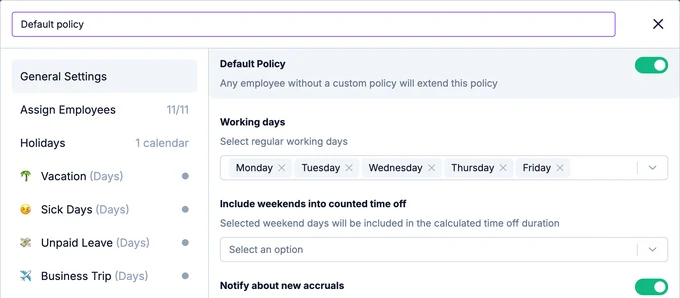
Open each time off type's tab and set its rules. See Rules for each time off type.
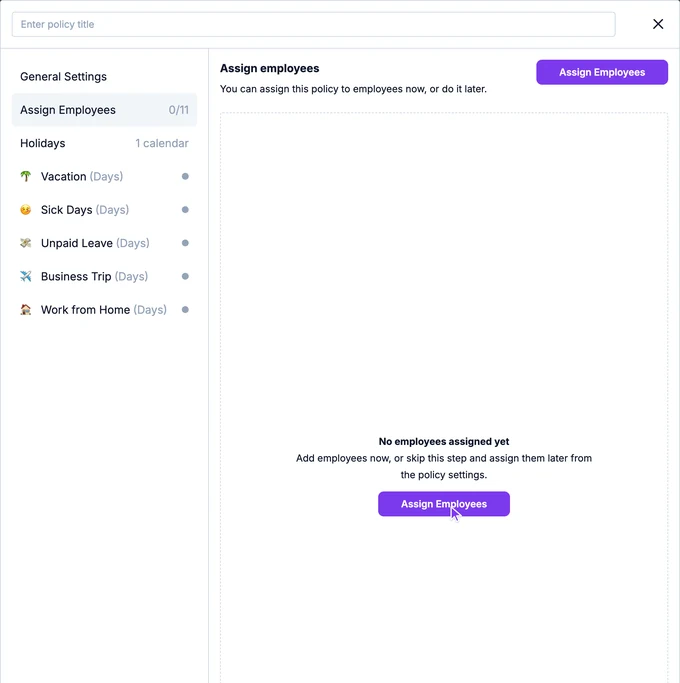
Optionally, choose holiday calendars and assign employees.
Click Save Changes.
The policy appears under Time off policies with its working days, holiday calendars, rules and number of employees.
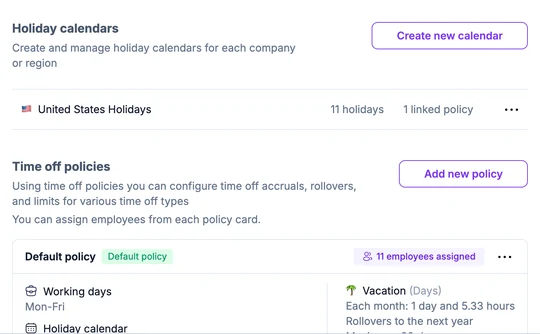
To change a policy later, click the three dots on its card and choose Edit.
The first policy you create becomes the default policy. Everyone follows it unless you assign them to another policy, and new hires are added to it automatically.
Rules for each time off type
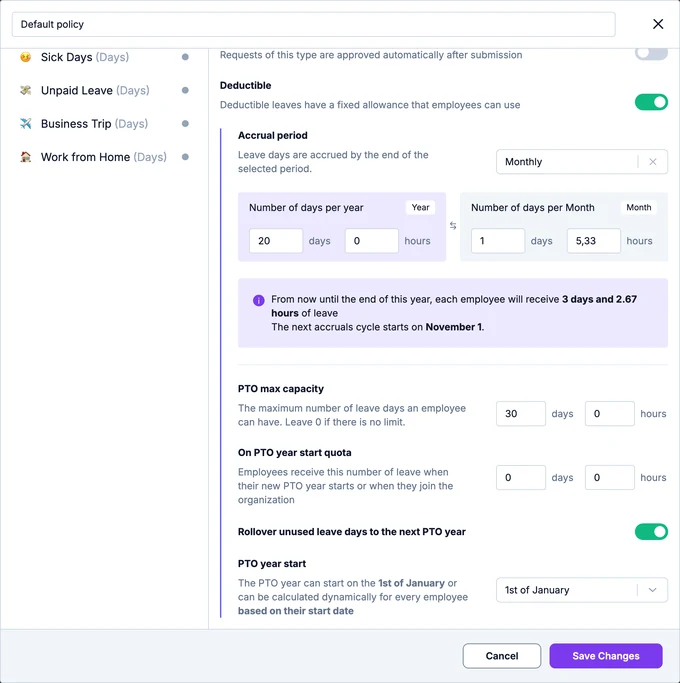
- Minimum duration: the least someone can request, a Day or an Hour. With Hour, the request form gets a Request in hours option: people pick a start time and 1 to 8 hours. Hours come out of the balance as part of a day, with 8 hours counting as one day. See how people request time off in hours.
- Auto-approve requests: requests are approved right after they're sent, without an approver.
- Deductible: the type has an allowance people use up, like vacation. Turn it off for types without a limit, like work from home.
When Deductible is on, you also set:
- Accrual period: whether days are added Weekly or Monthly, and how many: per year or per period. OrgaNice shows how many days each person will get by the end of the year and when the next accrual happens.
- PTO max capacity: the most days a balance can hold. 0 means no limit.
- On PTO year start quota: days people get at once when their PTO year starts or when they join.
- Rollover unused leave days to the next PTO year: carry unused days over instead of resetting the balance.
- PTO year start: 1st of January, or each person's start date.
How balances change
For deductible types, OrgaNice keeps each person's balance up to date:
- Joining: a new hire gets the On PTO year start quota of their policy.
- Accruals: on each accrual date, weekly or monthly, people get the days of that period. With notifications about new accruals on, they get a message.
- Max capacity: a balance never goes above PTO max capacity.
- PTO year start: on 1 January, or on each person's work anniversary, the balance resets to 0, or keeps the unused days if Rollover unused leave days to the next PTO year is on. Then the On PTO year start quota is added.
- Requests: approved requests take days off the balance, and deleted ones give them back.
- Manual changes: admins can correct any balance in Time Off Reports.
When you move people to another policy, or change the On PTO year start quota of a policy, OrgaNice asks Update current balances? Choose Don't update current balances to keep what people have, or Replace current balances with quotas from the new policy to start them over with its quota.
Every change is listed in the person's Activity Log.
Choose holiday calendars
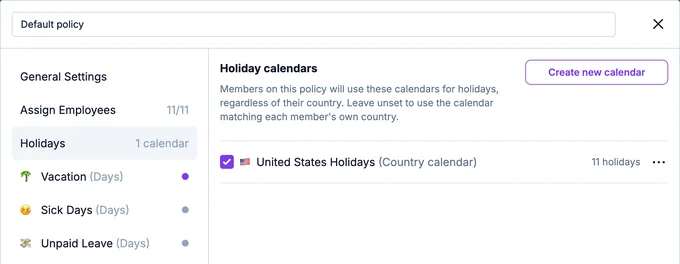
On the Holidays tab, check the holiday calendars for the people on this policy. They'll use these calendars whatever their country. Leave it empty to use the calendar of each person's own country.
Assign employees
Open the policy and go to Assign Employees. Click Assign Employees.
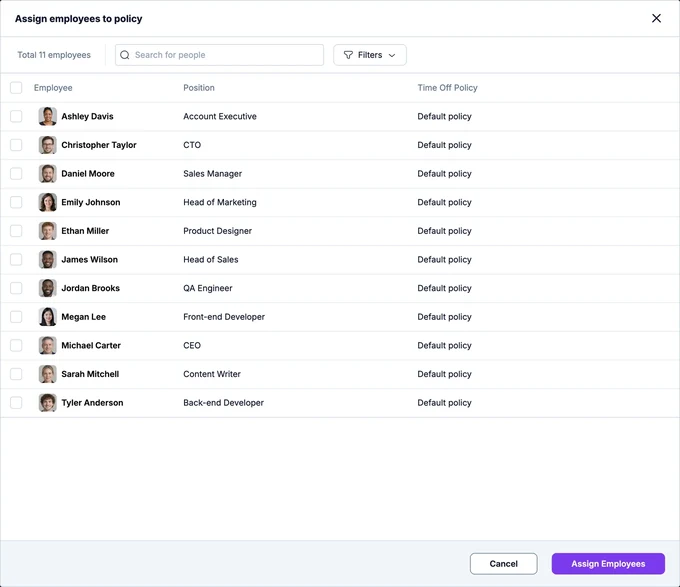
Select people. The list shows each person's current policy; use the search and Filters to find them. Click Assign Employees.
Click Save Changes.
A person can be on one policy at a time. Assigning them to a policy moves them off their current one.