

How to set up holiday calendars
For adminsUpdated Oct 31, 2026
Add a country or custom holiday calendar, edit its holidays and choose who follows it.
Holiday calendars hold the public holidays for each country or office. Holidays show on the calendar, aren't counted in time off, and can set people's Slack status.
Create a holiday calendar
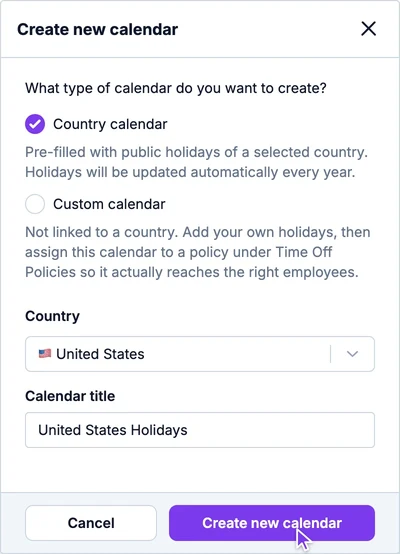
Go to Settings › Time Offs › Policies & holidays and click Create new calendar.
Choose the type of calendar:
- Country calendar: filled with the public holidays of the country you select, and updated automatically every year. Choose the Country; the title fills in for you.
- Custom calendar: not linked to a country. You add the holidays yourself, for example your office's own days off.
Click Create new calendar.
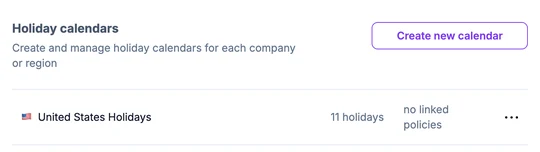
The calendar is added to the Holiday calendars list, with its number of holidays and the policies that use it.
Choose who follows a calendar
- Country calendars apply on their own: everyone whose profile country matches gets that country's holidays, unless their policy sets other calendars.
- To give a group of people a specific calendar, whatever their country, choose it on the Holidays tab of their time off policy. Custom calendars only apply this way.
Edit a calendar's holidays
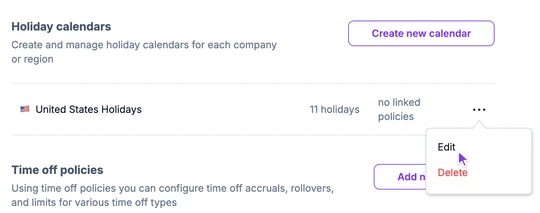
Click the three dots at the end of the calendar's row and choose Edit.
Choose the year at the top left. The holidays are a table you edit in place:
- Click a holiday's name, description or date to change it.
- Check Official holiday for days off. Official holidays aren't counted in time off that overlaps them. Uncheck it for days you only want to show on the calendar.
- Click Add Holiday to add a row.
- Select rows to Mark as Official, Mark as Non-official or Delete them together.
- In a country calendar, Re-add Missing Holidays brings back holidays you deleted.
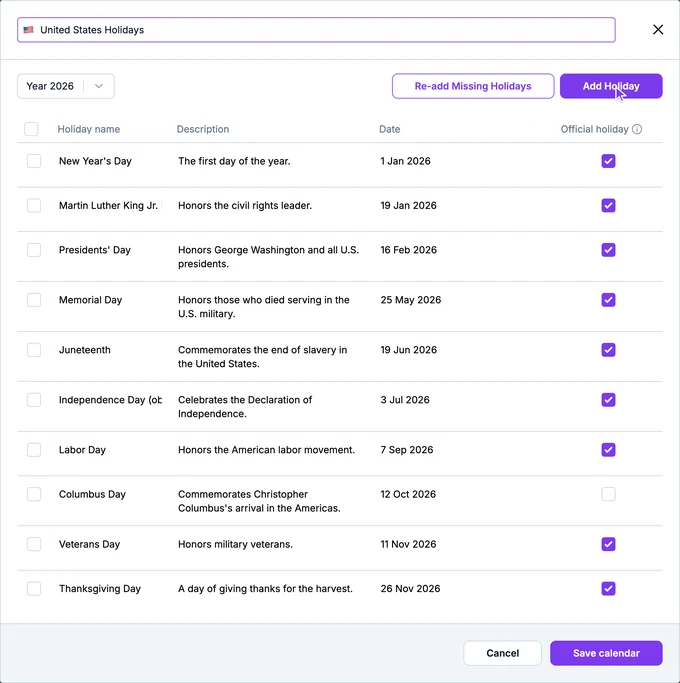
Click Save calendar.
To delete a calendar, click the three dots at the end of its row and choose Delete.