

How to set up time off
For adminsUpdated Nov 1, 2026
Turn on time off in OrgaNice: announcements, Slack statuses and approvals, then types, holiday calendars and policies.
Time off settings decide how OrgaNice announces leave, which kinds of leave people can request and how many days they get. Open Settings › Time Offs. There are three tabs: General settings, Policies & holidays and Integrations.
Only OrgaNice admins can change these settings.
General settings
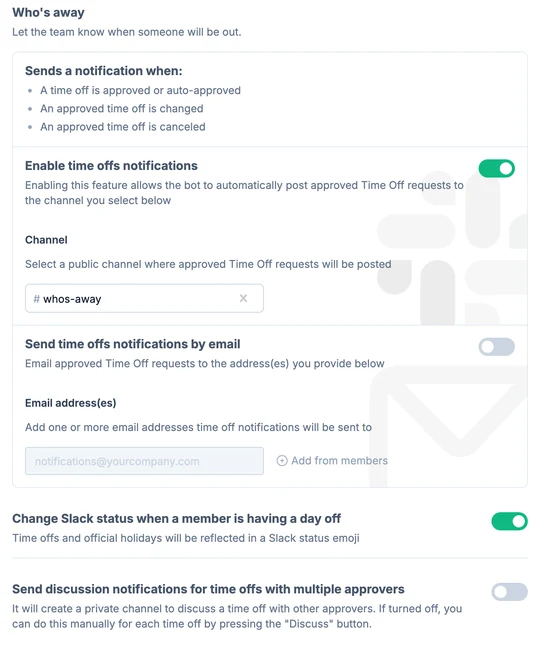
- Who's away: let the team know when someone will be out. Turn on Enable time offs notifications and pick a public Slack channel, or turn on Send time offs notifications by email and add email addresses. OrgaNice posts when time off is approved or auto-approved, and when approved time off is changed or canceled.
- Change Slack status when a member is having a day off: OrgaNice sets an emoji status in Slack while someone is on leave or on an official holiday.
- Send discussion notifications for time offs with multiple approvers: OrgaNice creates a private Slack channel where the approvers discuss a request. With it off, approvers can start one with the Discuss button. See how group approvals work.
Policies & holidays
This tab has three sections. Set them up in this order:
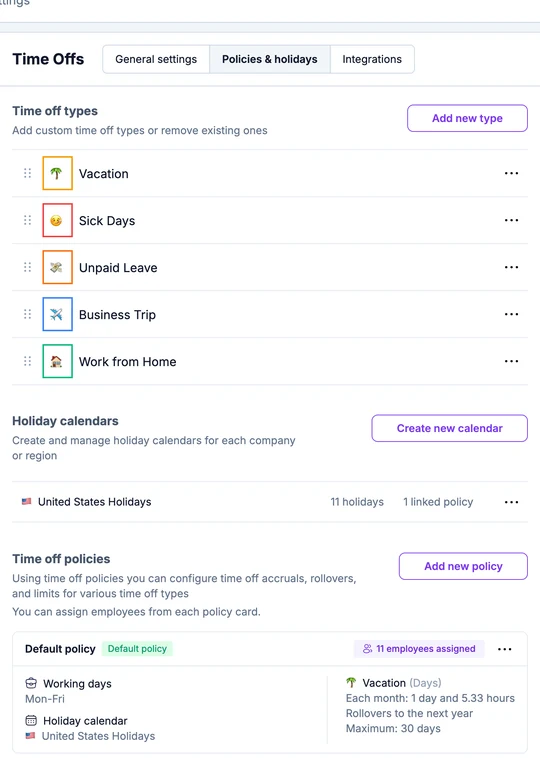
- Time off types: the kinds of leave people can request. OrgaNice comes with Vacation 🌴, Sick Days 🤒, Unpaid Leave 💸, Business Trip ✈️ and Work from Home 🏠. See how to add and edit time off types.
- Holiday calendars: public holidays for each country or office. See how to set up holiday calendars.
- Time off policies: how many days people get for each type, how they accrue and roll over, and which requests are approved automatically. See how to create time off policies.
Integrations
Each person can connect their Google Calendar so their approved time off is added to it automatically. Here you see who has connected, remind the others, and choose which time off types sync and whether they show as busy or free. See how to connect Google Calendar. For Outlook or Apple Calendar, use a calendar feed.
What's next
- Introduce time off to your team with a ready-made announcement.
- People request time off in Slack or in the web calendar, and approvers get each request in Slack. See how time off notifications work.