

How to use the time off calendar
For everyoneUpdated Nov 1, 2026
See who's away, find people, add or edit time off and check someone's balance in the OrgaNice calendar.
The calendar in the OrgaNice web app shows who's away, public holidays and celebrations across your company. Open it from Calendar in the menu on the left. In Slack, go to the OrgaNice Home tab and click Open in App.
Read the calendar
Each row is a person and each column a day, with today highlighted. Time off shows as a block with its type's emoji and color; pending requests are striped. Use the arrows at the bottom to move between months, and the button next to them to come back to today.
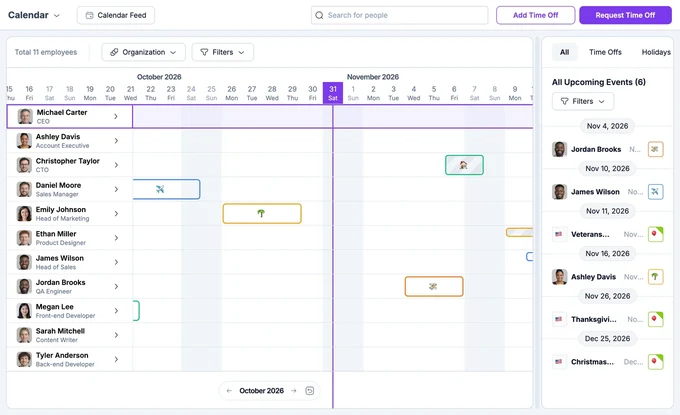
The panel on the right lists upcoming events. Switch between All, Time Offs, Holidays and Celebrations, or narrow it down with Filters.
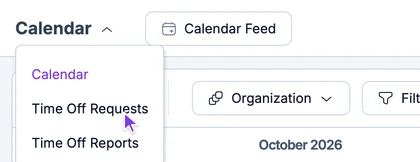
The menu next to the Calendar title switches to the other views: Time Off Requests and, for admins, Time Off Reports.
Find people
- Type a name in Search for people at the top.
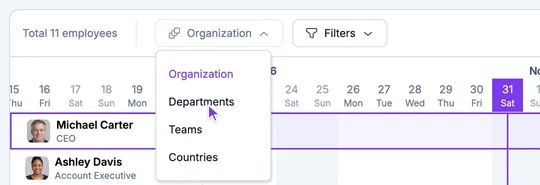
- Group the rows by Organization, Departments, Teams or Countries.
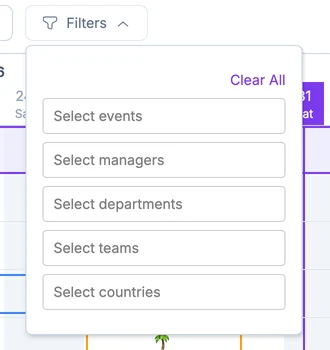
- Click Filters to show only some events, managers' teams, departments, teams or countries. Clear All resets them.
Request time off
Click Request Time Off at the top right, fill in the form and send it. It works like requesting time off in Slack: your approvers get the request in Slack.
Add time off for someone
Admins can add time off for anyone, for example when someone calls in sick.
Click Add Time Off at the top right.
Choose the Requester, the Request type and the dates. Add a Comment if you like, for example why you're adding it, and attach files if needed, like a doctor's note. On the right, you see the person's time off this year, how many days will be deducted from their balance, and holidays or weekends that won't be.
Click Save.
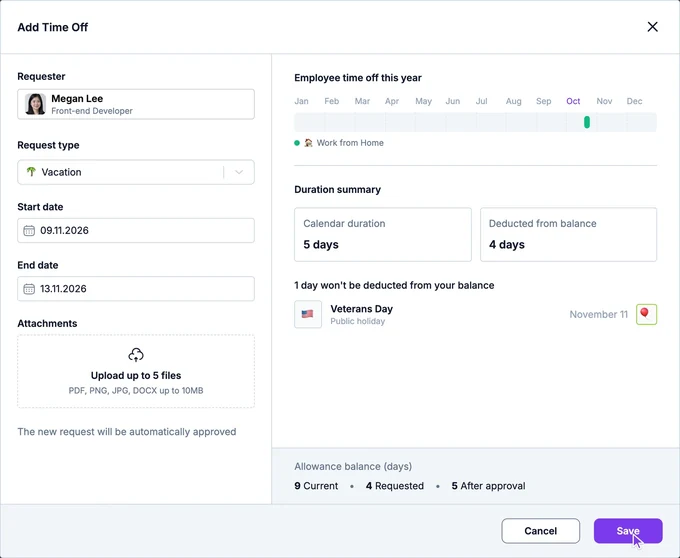
The time off is approved right away and shows on the calendar. It's announced in your Who's away channel or email if you set one up, and the person's manager gets a message.
Edit or delete time off
Admins can change any time off.
Click the time off on the calendar.
To edit it, change the type, dates, comment or attachments and click Save. The requester gets a message about the change.
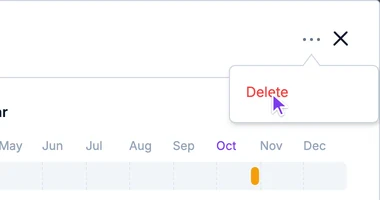
To delete it, click the three dots at the top of the window and choose Delete.
See someone's time off and balance
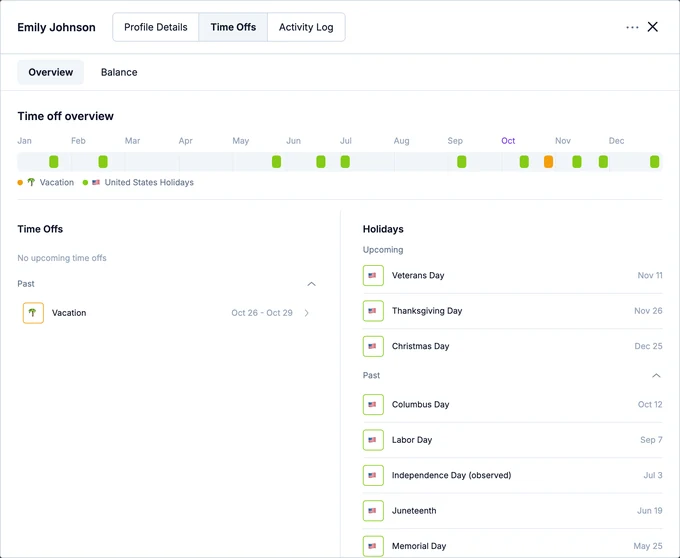
Click the arrow next to a person's name and open Time Offs.
- Overview: their time off this year on a timeline, upcoming and past time off, and the holidays they follow.
- Balance: a monthly chart of days accrued, used and left for each type, and the time off policy they're on.
To see the calendar in Google Calendar, Outlook or Apple Calendar, click Calendar Feed at the top. See how to sync with external calendars.