

How to use time off reports and edit balances
For adminsUpdated Oct 31, 2026
See days taken and available for everyone, export them, and correct someone's balance.
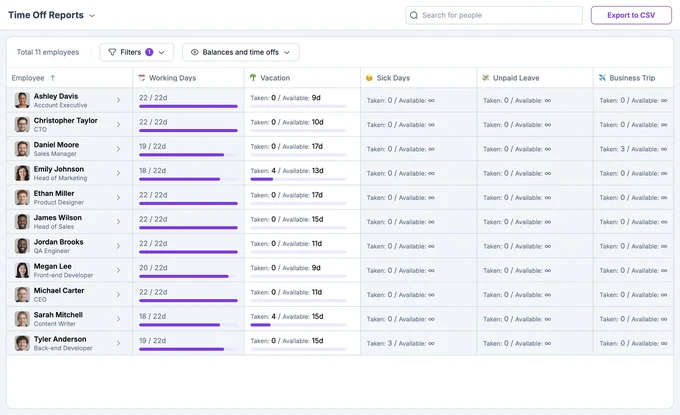
Time Off Reports shows how much time off everyone has taken and has left, and lets you correct a balance. Open Calendar in the OrgaNice web app, click the menu next to the Calendar title and choose Time Off Reports.
Only OrgaNice admins can see Time Off Reports.
Read the report
- Working Days: the days each person worked out of the working days in the period.
- A column for each time off type: days Taken in the period and days Available now. Types without an allowance show ∞.
Click a person's name to open their profile.
Filter the report
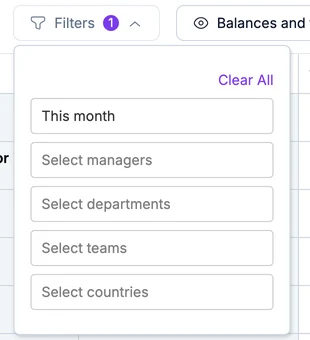
- Click Filters to choose the period (This month by default) and show only some managers' teams, departments, teams or countries. Clear All resets them.
- Use Search for people to find someone.
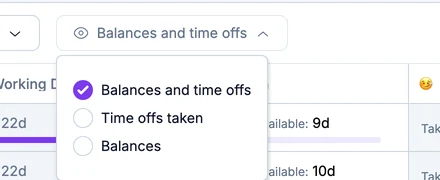
- Click Balances and time offs to show both values, only Time offs taken or only Balances.
Export to CSV
Click Export to CSV, choose Balances and time offs, Time offs taken or Balances, and download the file. It includes the people and period you filtered.
Edit someone's balance
Correct a balance when someone carries days over from another system, or gets extra days.
Click the person's cell in a time off type's column. You can edit types that have an allowance.
Type the number of days they should have available and press Enter. While you type, you see how the balance changes and the rules of their policy.
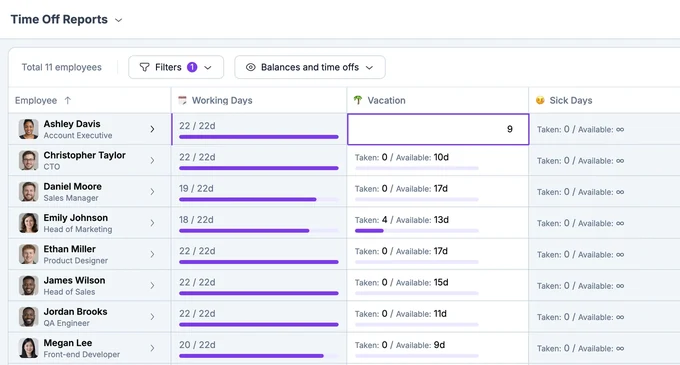
Optionally, add a comment explaining why, and click Update.
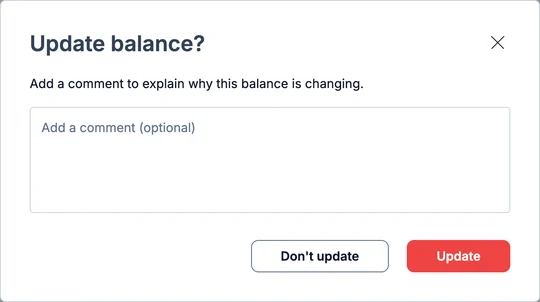
The new balance applies right away. The change and your comment are saved in the person's Activity Log.