

How to sync OrgaNice calendar with external calendars
For everyoneUpdated Nov 1, 2026
Show OrgaNice time off and holidays in Google Calendar, Outlook or Apple Calendar with a calendar feed.
A calendar feed is a private link that brings your OrgaNice time off, team leave and public holidays into Google Calendar, Outlook or Apple Calendar. You see them next to your meetings, on desktop and mobile.
Get your calendar feed link
In Slack, open OrgaNice under Apps, go to the Home tab › Dashboard and click Open in App.
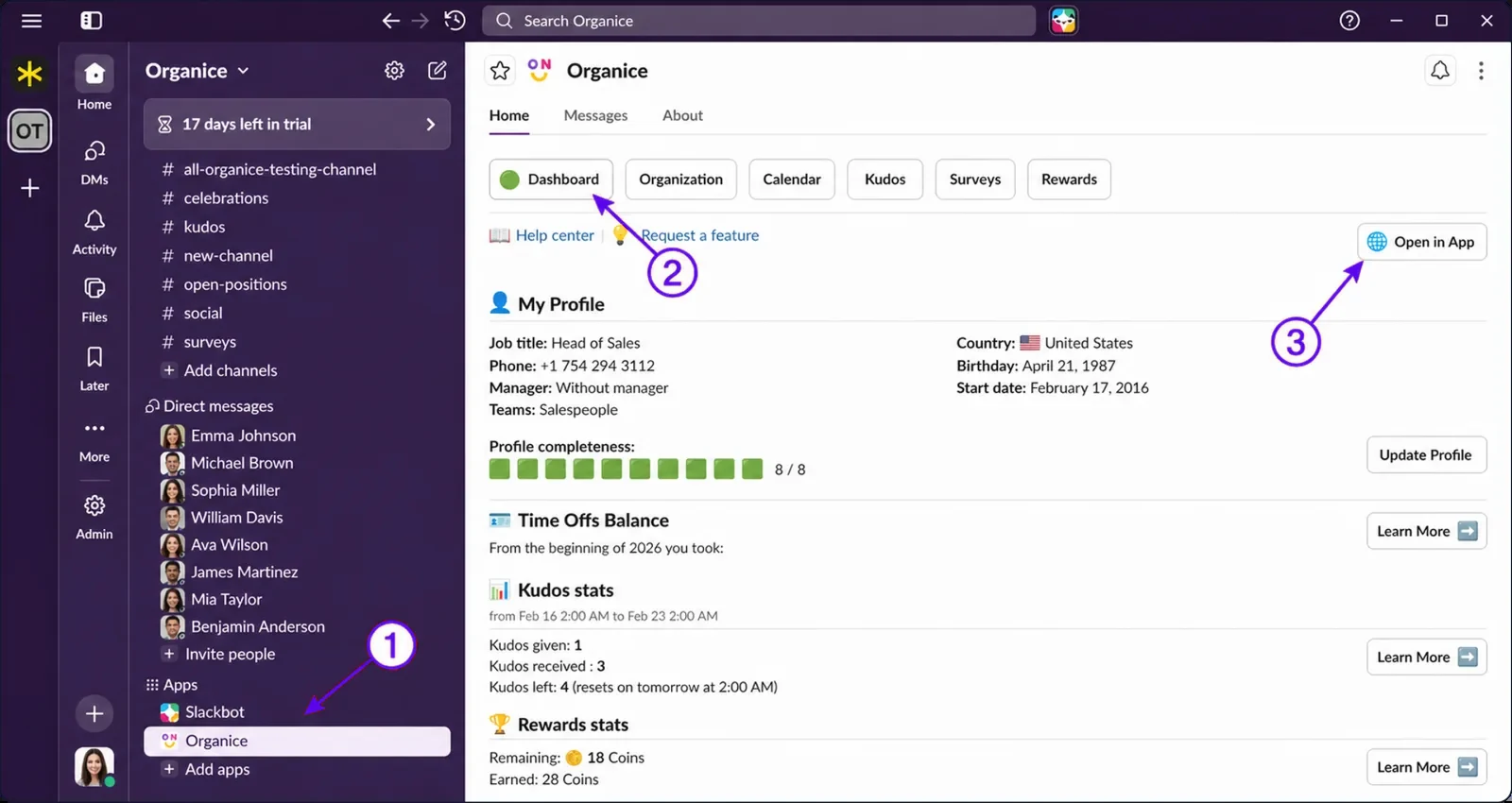
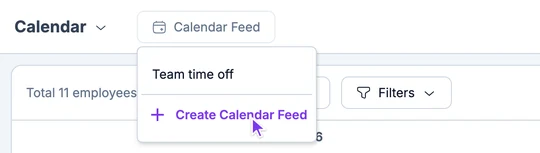
In the web app, open Calendar, click Calendar Feed and choose Create Calendar Feed.
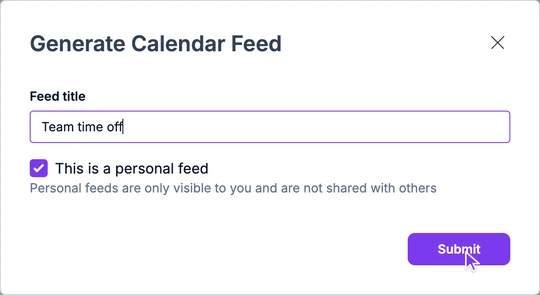
Enter a Feed title. Keep This is a personal feed checked if the feed is just for you: personal feeds aren't shared with anyone else. Click Submit.
The feed opens in a new tab. To include only some people or time off types, use Filters. Then click Copy Link.
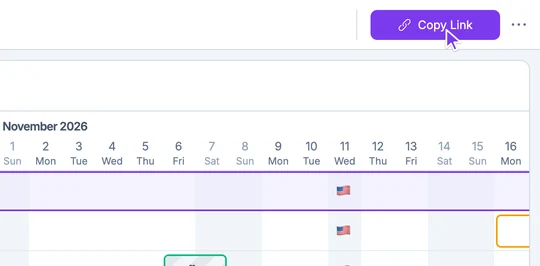
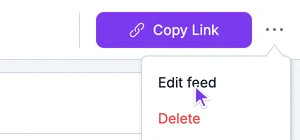
Your feeds are listed in the Calendar Feed menu; choose one to open it. To rename or delete a feed, click the three dots next to Copy Link and choose Edit feed or Delete.
Using Google Calendar? You can also connect your own Google Calendar so your approved time off is added to it automatically. See how to connect Google Calendar.
Add the feed to Google Calendar
Open Add calendar from URL in Google Calendar, signed in to the right Google account. Or, in Google Calendar, click + next to Other calendars and select From URL.
Paste your OrgaNice feed link into URL of calendar.
Click Add calendar.
In a few moments, the OrgaNice calendar appears under Other calendars and its events show on your calendar.
Add the feed to Outlook on the web or Microsoft 365
Open Outlook in your browser and switch to Calendar.
Click Add calendar, then Subscribe from web.
Paste your feed link, name the calendar (for example, OrgaNice Team) and pick a colour and icon.
Click Import.
Add the feed to the Outlook desktop app
Open Outlook and switch to Calendar.
Click Add or Open Calendar, then From Internet…
Paste your feed link and click OK, then Yes to confirm.
Add the feed to Apple Calendar on a Mac
Open Calendar and choose File › New Calendar Subscription…
Paste your feed link and click Subscribe.
Set the name and colour. To see it on your iPhone too, set Location to iCloud. Click OK.
Add the feed on an iPhone
Open Settings and tap Calendar › Accounts.
Tap Add Account › Other › Add Subscribed Calendar.
Paste your feed link into Server, tap Next, then Save.