

How to use time off on the Slack Home tab
For everyoneUpdated Nov 1, 2026
See and delete your requests, approve your team's and check the company calendar on the OrgaNice Home tab in Slack.
Your own requests, the requests waiting for you and the company calendar all live on the OrgaNice Home tab in Slack. Go to OrgaNice › Home tab › Calendar and pick a view from the menu: My Calendar, Incoming Requests or Org Calendar.
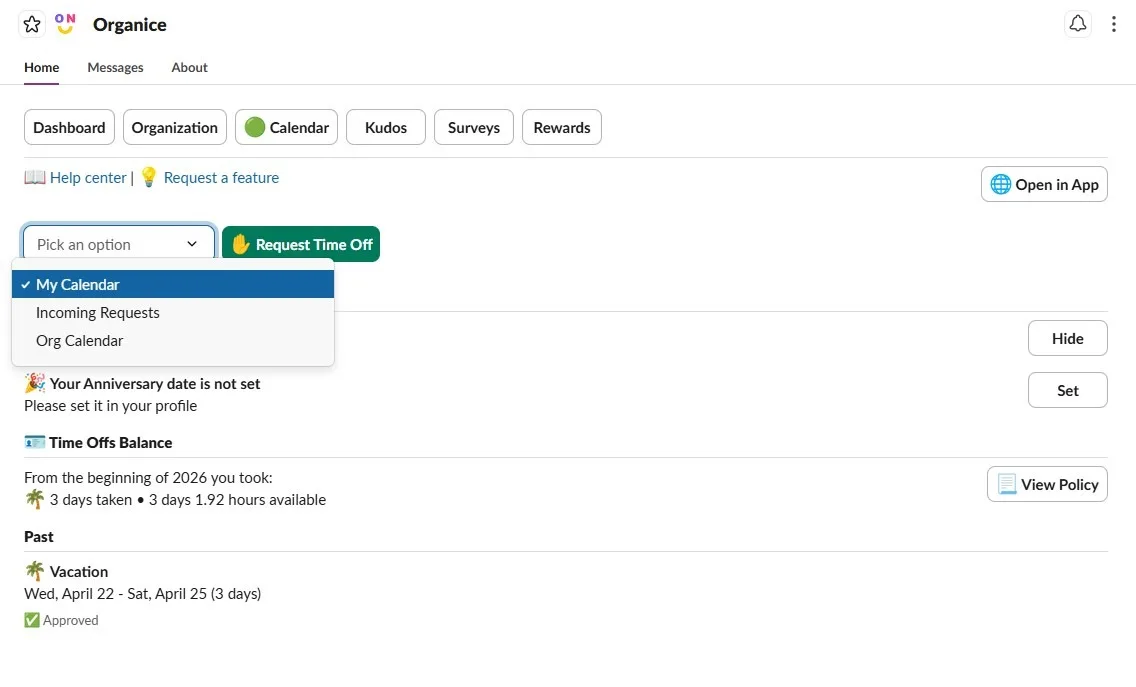
My Calendar
Your time off balance for the year and your requests: pending, upcoming and past, with their status. View Policy shows the rules of your time off policy.
Delete your time off
Changed your plans? Delete your request, whether it's still pending or already approved.
In My Calendar, find the request.
Click Delete next to it.
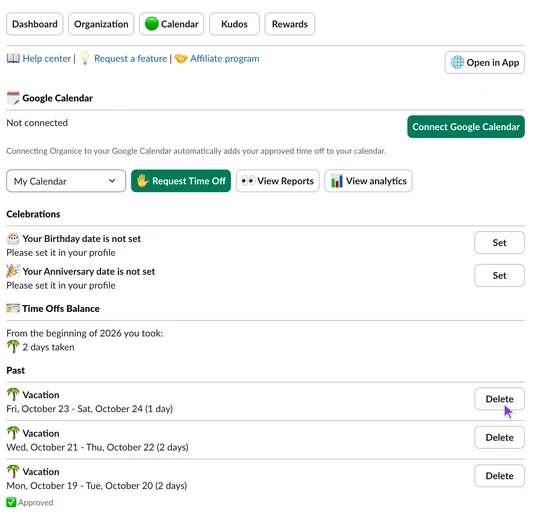
The request is deleted right away, and any days it used go back to your balance. Your approvers get a message, and if the time off was already announced, OrgaNice announces the cancellation in your Who's away channel too.
You can delete your own requests until the time off starts. After that, ask an OrgaNice admin: admins can delete any time off. You can also delete requests on the Time Off Requests page in the web app.
Incoming Requests
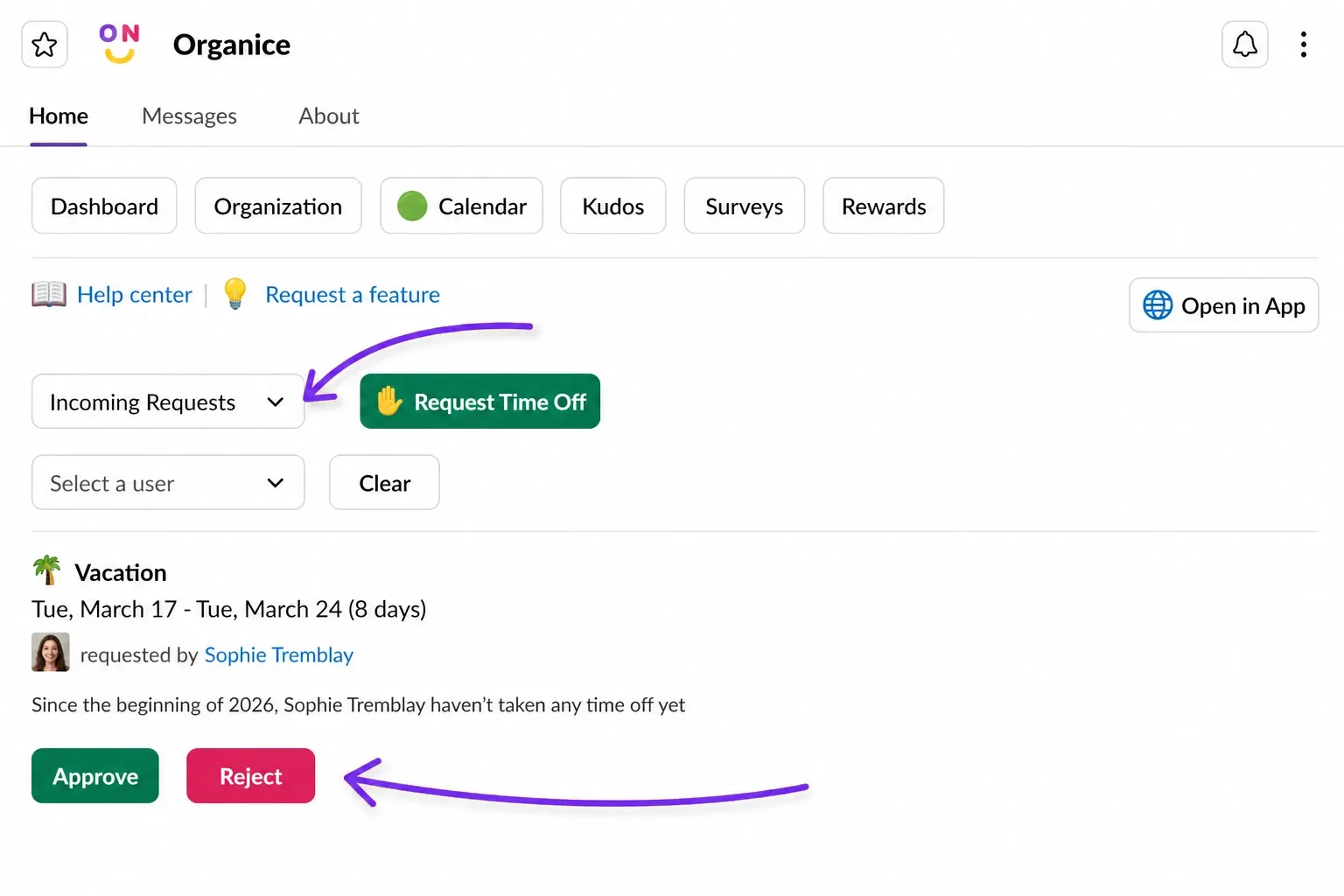
Pending requests that wait for your decision: the ones you were asked to approve and the ones from your team on the org chart. Each shows the dates and how much time off the person has taken this year.
- Click Approve or Reject. The request then leaves this list.
- Pick a person in Select a user to see only their requests. Clear shows everyone again.
Org Calendar
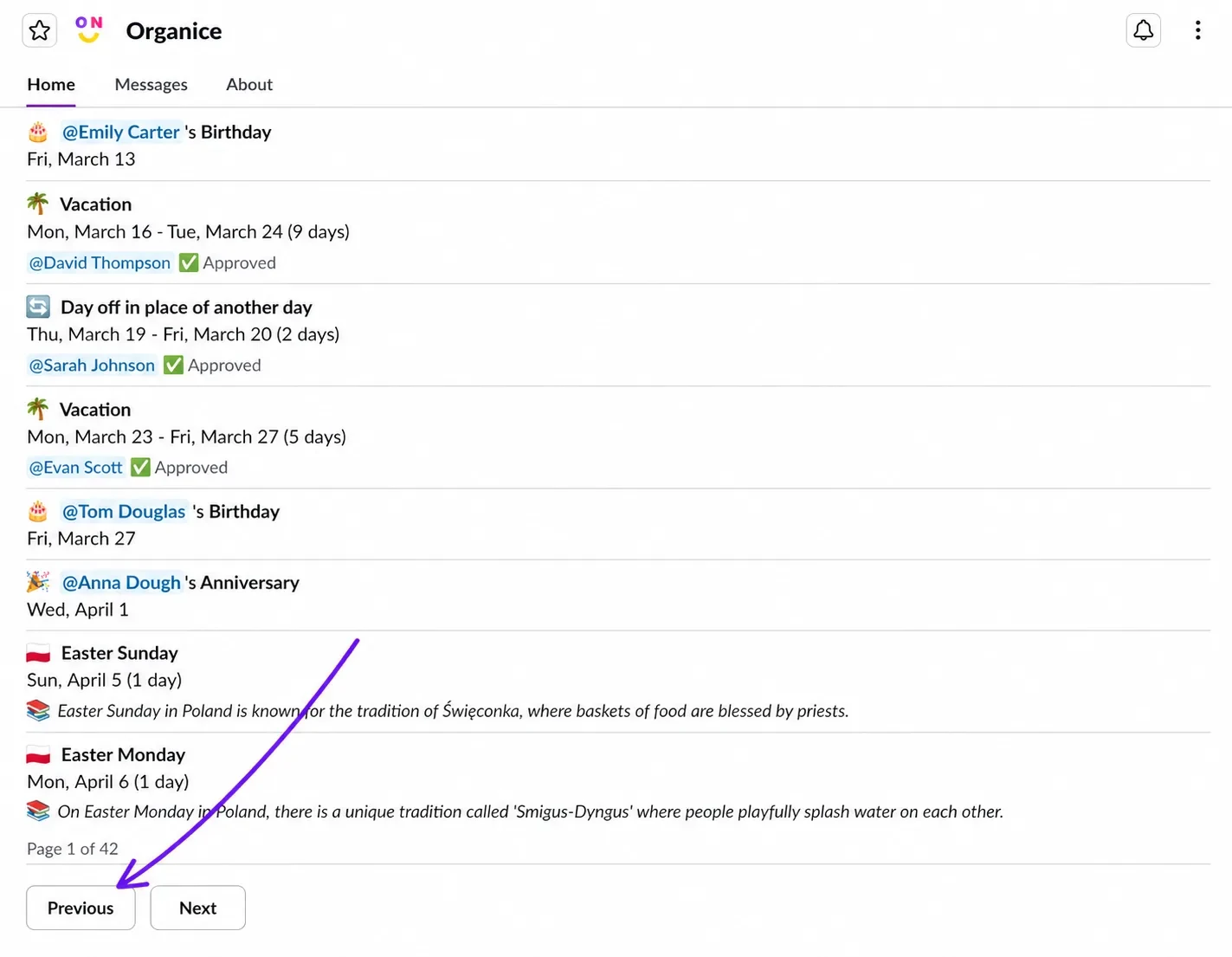
Approved time off, public holidays and celebrations across your company, from today on. Use Select a user to see one person's events, or Select an event type to show only Time Off, Holiday or Celebration.
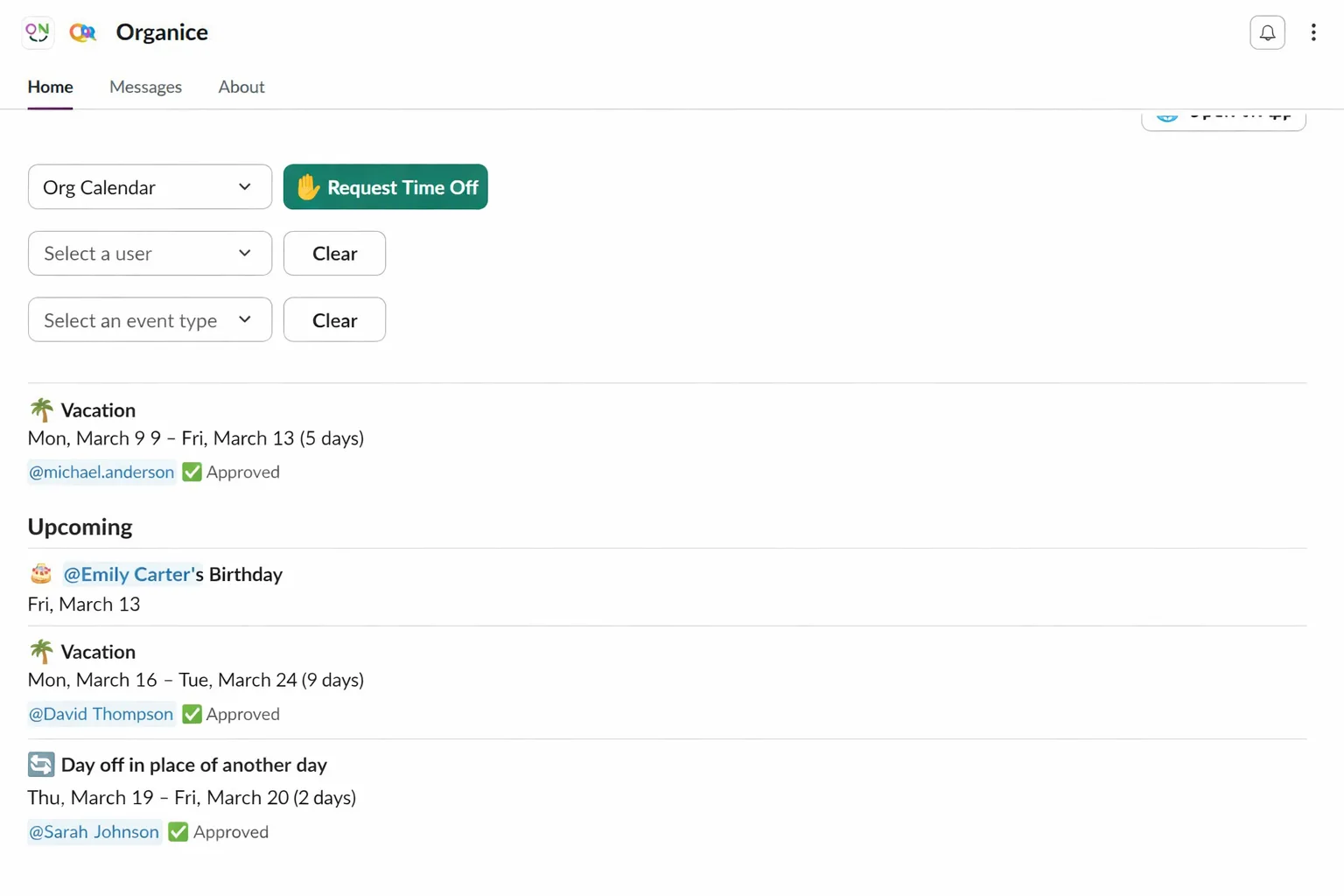
To see past events, scroll down and click Previous. Next goes forward again.
Google Calendar
The Calendar page also has a Google Calendar section. Click Connect Google Calendar and sign in to Google: from then on, your approved time off is added to your own Google Calendar. See how the Google Calendar integration works.
Who can do what
- Everyone sees their own requests and the company's approved time off, and can delete their own requests until the time off starts.
- Approvers can approve or reject the requests sent to them, and delete them until the time off starts.
- OrgaNice admins also see pending requests on the Org Calendar and can delete any request. They get View Reports and View analytics buttons that open Time Off Reports and Time Off Requests in the web app.