

How to see and manage time off requests
For everyoneUpdated Oct 31, 2026
Review requests in one list, filter them, approve or reject them and export them to CSV.
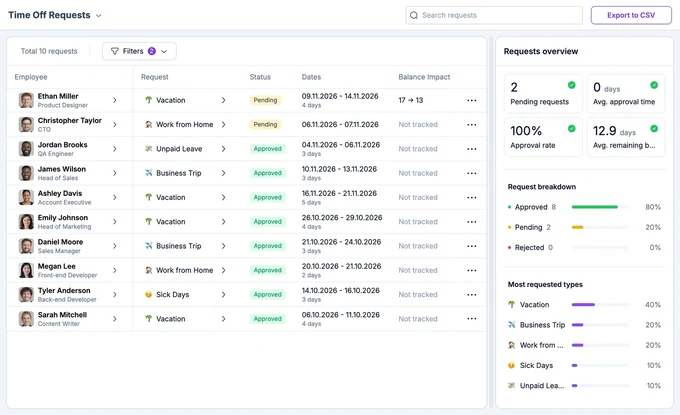
Time Off Requests lists time off requests with their status and how they change balances. Open Calendar in the OrgaNice web app, click the menu next to the Calendar title and choose Time Off Requests.
Who sees what
- Everyone sees their own requests and the requests they were asked to approve.
- OrgaNice admins see every request in the company, the Requests overview panel and Export to CSV.
Read the list
Each row shows the employee, the time off type, the status (Pending, Approved or Rejected), the dates and the Balance impact: the balance before and after the request, like 17 → 13. Types without an allowance show Not tracked.
By default, the list shows requests sent this month. Click Filters to choose another period or show only some statuses, time off types or requesters. Use Search requests to find one.
Approve, reject or delete a request
Click the three dots at the end of a row:
- Approve or Reject a pending request.
- View to open the request.
- Delete to remove it.
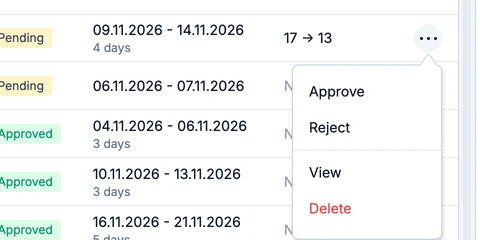
Approvers can approve and reject the requests they were asked to approve. Approvers and requesters can delete a request until its time off starts; admins can delete any request. See how time off notifications work for who gets a message.
Requests overview
Admins see a summary of the requests in the selected period next to the list:
- Pending requests, Avg. approval time, Approval rate and Avg. remaining balance.
- Request breakdown: how many requests were approved, pending and rejected.
- Most requested types.
To download the list, click Export to CSV at the top right. The file includes the requests that match your filters.