

How approvals by group work
For adminsUpdated Nov 1, 2026
How OrgaNice handles time off requests with several approvers, from the shared channel to the decision.
A time off request can go to more than one approver, for example a manager and a project lead. OrgaNice sends the request to each of them and can bring them together in a private Slack channel to agree on it.
How a group approval works
In Ask Approval From, the requester adds every approver. The form remembers the approvers from their last request; for a first request, it suggests their manager.
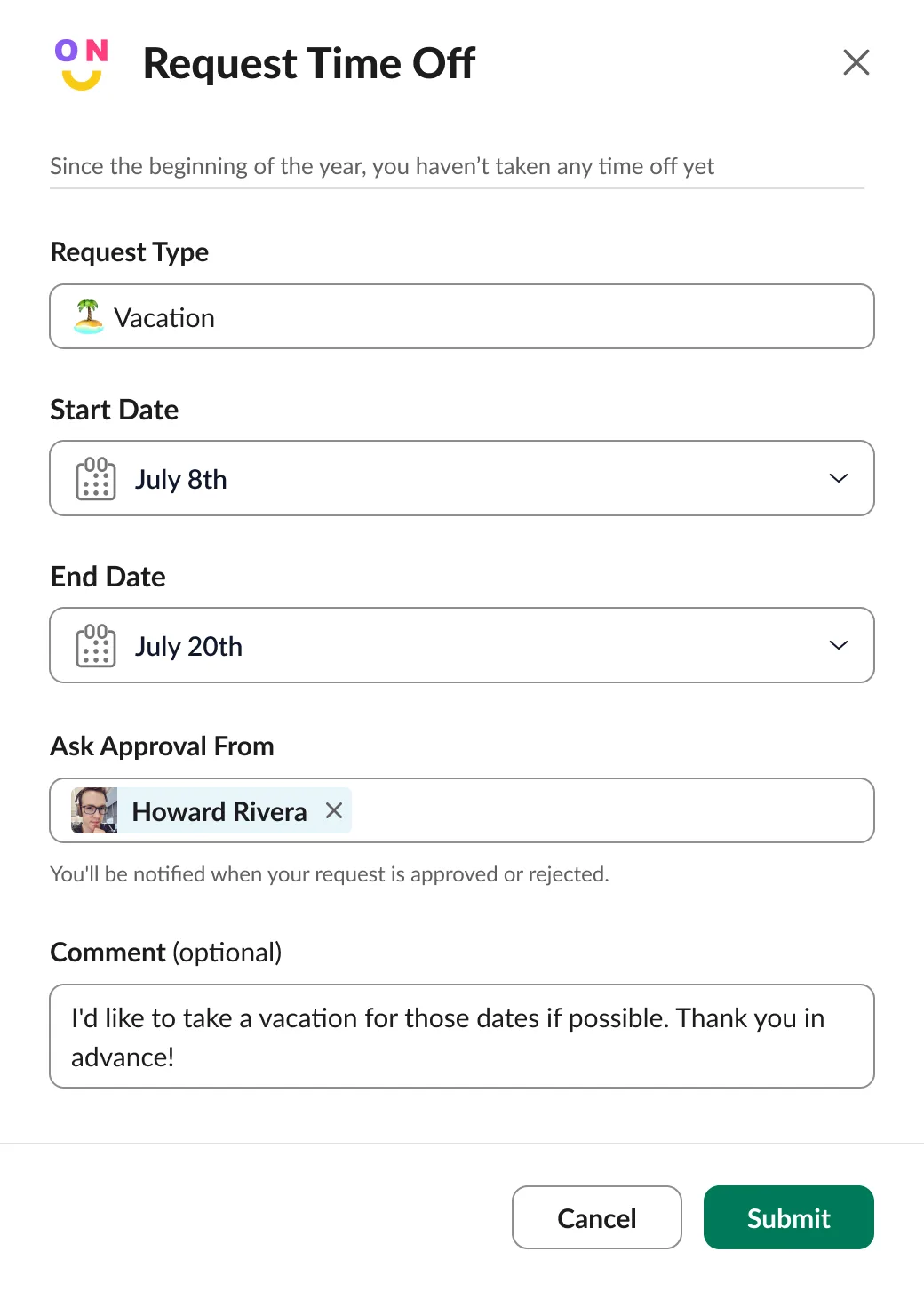
Each approver gets the request with Approve and Reject buttons.
If your admin turned on Send discussion notifications for time offs with multiple approvers, OrgaNice also creates a private Slack channel for the request and invites the approvers. If the setting is off, any approver can create the channel with the Discuss button. To bring someone else in, use Slack's Invite to channel.
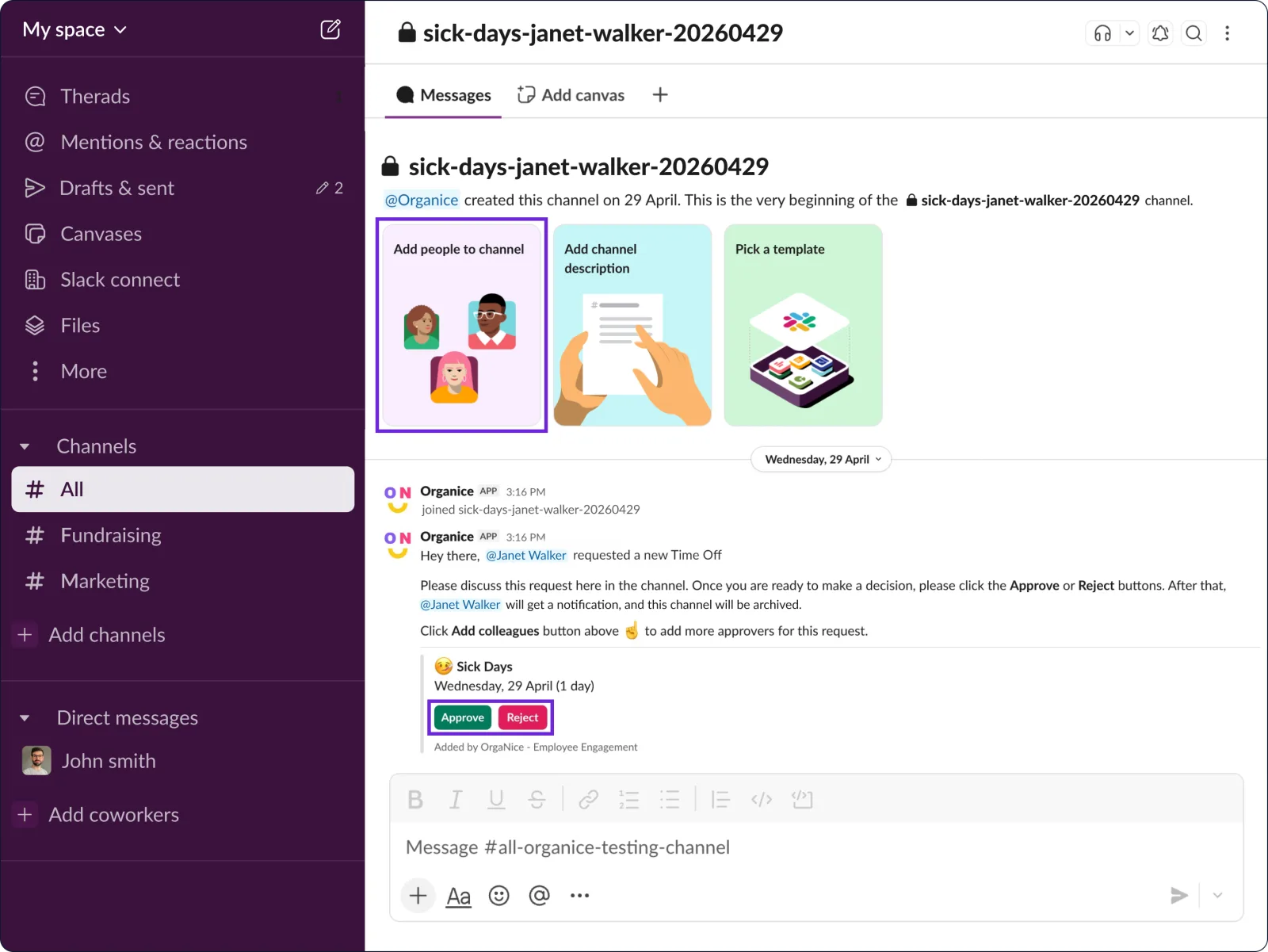
The approvers agree in the channel, then one of them clicks Approve or Reject.
OrgaNice tells the requester, updates every approver's message with the decision and archives the channel.
The first Approve or Reject decides the request for everyone, so click it only once you've all agreed.
If the request is still waiting 24 hours after it was sent, and the time off starts at least 2 days later, OrgaNice reminds the approvers once.
Admins turn the discussion channel on or off in Settings › Time Offs › General settings. See how time off notifications work.