

How to connect Google Calendar
For everyoneUpdated Nov 1, 2026
Add approved time off to each person's Google Calendar automatically, choose which types sync and remind people to connect.
With the Google Calendar integration, OrgaNice adds each person's approved time off to their own Google Calendar. Colleagues see it when they plan meetings, and nobody has to block their calendar by hand. Each person connects their own calendar once.
Connect your Google Calendar
Use either way:
- In Slack: open OrgaNice › Home tab › Calendar and click Connect Google Calendar.
- In the web app: click your name at the bottom left, choose User Settings › Integrations and click Connect.
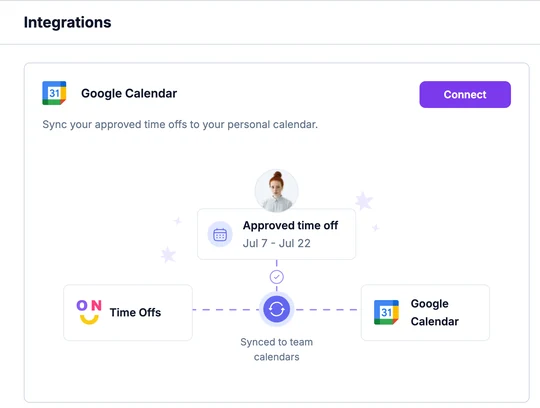
Sign in to Google and allow access.
From then on, your approved time off appears in your Google Calendar. To stop it, click Disconnect in the same place.
Set up the integration as an admin
Go to Settings › Time Offs › Integrations.
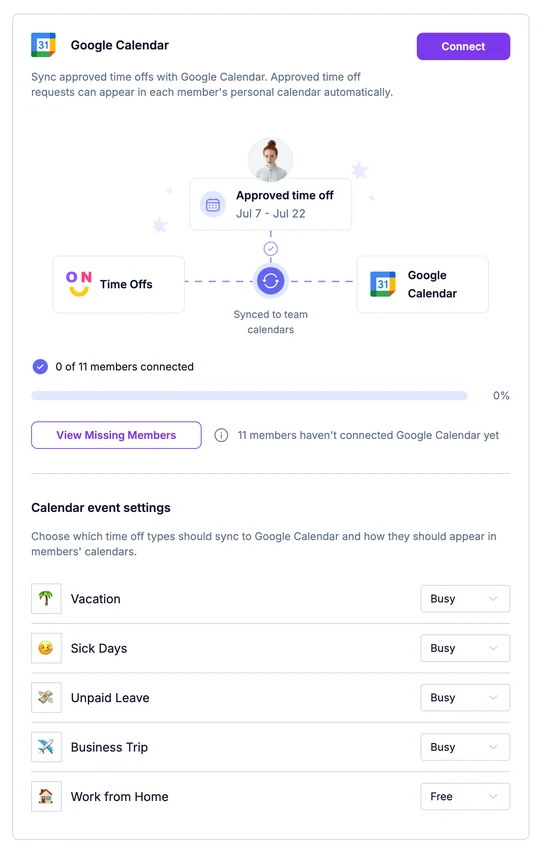
- Connect: connect your own Google Calendar.
- Members connected: how many people have connected so far.
- Calendar event settings: for each time off type, choose Busy, Free or Don't sync. Busy blocks the time in the person's calendar, Free shows the event without blocking it, and Don't sync leaves that type out.
Remind people to connect
Click View Missing Members to see who hasn't connected yet.
Select people and change the message if you like.
Click Send Reminder. OrgaNice sends it in Slack or by email, depending on each person's settings.
Only approved time off is synced. To see your whole team's time off in Google Calendar, Outlook or Apple Calendar, add a calendar feed.